
Overview
In Perspio Workflows, Scope defines which assets a workflow evaluates. Selecting the correct scope is critical: it controls where your conditions apply, who receives notifications, and how much data the workflow processes.
Scope is configured in the Add Workflow Wizard → Step 2: Scope, after you complete Details (Workflow Type, Name, Description).
What “Scope” controls
Scope determines:
-
Which assets are monitored by the workflow condition logic
-
How broadly the workflow applies (single assets vs groups vs the entire tenant)
-
How maintenance changes behave over time (especially for group-based workflows)
Where to configure Scope
-
Go to Workflows.
-
Select Add to open the Add Workflow Wizard.
-
Complete Step 1: Details.
-
In Step 2: Scope, select one of the three scope modes:
-
Assets
-
Groups
-
Global
-
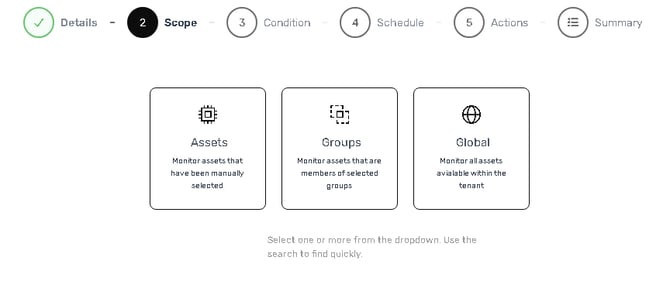
Scope options explained
1) Assets scope
Purpose: Apply the workflow to a manually selected list of assets.
Tile description: “Monitor assets that have been manually selected.”
How it behaves
-
The workflow evaluates only the assets you explicitly choose.
-
If new assets are added to the platform later, they are not included automatically.
-
Best when you need tight targeting or an exception rule.
Best use cases
-
One-off monitoring for a small set of assets (e.g., trial devices, VIP customer assets)
-
Temporary or investigative monitoring
-
Special handling for specific asset classes without relying on group structure
Example workflows
-
“Temperature Alert – Trial Fleet Only”
-
“Asset Name contains ‘Freezer’ – Notify Technician”
2) Groups scope
Purpose: Apply the workflow to all assets that belong to one or more selected groups. Doesn't apply for Security Groups, only for Asset Groups.
Tile description: “Monitor assets that are members of selected groups.”
How it behaves
-
The workflow evaluates assets based on group membership.
-
This is the preferred option when you want workflows to scale with operations:
-
Add an asset to the group → it becomes in-scope automatically
-
Remove an asset from the group → it stops being evaluated
-
Best use cases
-
Customer-specific workflows (each customer group gets its own rules)
-
Branch/region workflows (e.g., NSW vs QLD operations rules)
-
Asset-type workflows (e.g., “Refrigerated”, “Generators”, “High-value assets”)
Example workflows
-
“Rego Expiry Reminder – NSW Fleet Group”
-
“Door Open Alert – Refrigerated Assets Group”
-
“Device Offline – Customer ABC Group”
3) Global scope
Purpose: Apply the workflow to all assets available within the tenant.
Tile description: “Monitor all assets available within the tenant.”
When Global is selected, the helper text confirms this behaviour (example shown):
-
“This workflow will evaluate all available assets within the platform, with no filter.”
How it behaves
-
The workflow evaluates broadly across the environment.
-
Best for tenant-wide policies and standardised operational rules.
-
Use carefully with Conditions and Suppression to avoid unnecessary volume.
Best use cases
-
System-wide compliance rules (e.g., device offline checks)
-
Global notifications for safety/critical events
-
Standard governance and monitoring patterns that should apply everywhere
Example workflows
-
“Device Offline > 2 hours – Notify Operations”
-
“Critical Event Trigger – Escalate to On-Call”
-
“Daily Summary – Send to Ops Inbox”
Choosing the right scope (quick guide)
-
Assets: choose when you need precision and manual control over a small set.
-
Groups: choose when you want scalable rules that follow operational grouping.
-
Global: choose when the workflow is a standard policy for the entire tenant.
Best practices
-
Prefer Groups for workflows you expect to keep long-term (it reduces ongoing admin).
-
Use Assets scope for exceptions or temporary workflows.
-
Use Global only when:
-
your condition is specific and safe at scale, and/or
-
you’ve configured Schedule and Suppression to control repeat triggers.
-
-
In Actions, use the Variable Inspector to include identifying fields (Asset Name, IDs, key telemetry) so alerts are self-explanatory.
Troubleshooting
-
Workflow triggers too often: scope is likely too broad (Global) or groups contain more assets than expected. Tighten scope and/or condition, and review suppression.
-
Workflow missing assets: confirm the asset is included in the selected scope (manually selected for Assets scope, or correctly assigned to the target group for Groups scope).
-
Scope changes not reflected: for Assets scope, you must edit the workflow to add/remove assets; for Groups scope, update group membership.