
Overview
First, confirm whether the asset moved. Perspio updates the reported location only when the asset changes location. If it stays in the same place, the device can keep sending data while the map timestamp stays the same.
Prerequisites
Make sure you can open the asset’s Snapshot. Have the expected location and, if it moved, the approximate time it moved. An administrator can check the location settings if you don’t have access to Configuration.
Step-by-step instructions
- Check the position on the map. In Asset Inspector, select the marker or open the asset from List using its Asset ID. In Snapshot, confirm the asset name and read the position and timestamp below the map. If you can’t find the asset record, see the missing-asset guide.

Read the timestamp below the map. This position was last recorded on 9 November. - Check when the device last reported. Select Last Seen in the Snapshot header. It shows when each linked device last checked in. If the asset stayed put and the pin shows the correct place, you can stop here. If the asset moved or the pin still looks wrong, check the location settings.
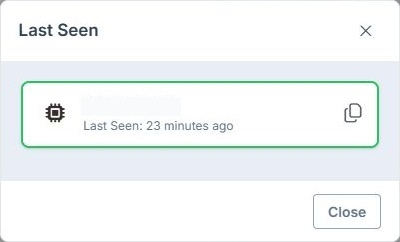 The linked device checked in 23 minutes earlier, even though the map timestamp was older.
- Check for a manual location. Open Configuration → Display → Static Location and read Manual Location Override.
- If the override is On, the map uses the manually set position. Ask the person responsible for the asset whether that position is intentional. See How to Manually Override an Asset Location if it needs changing.
- If the override is Off, check Last Known Location, if shown, and compare it with the position and timestamp in Snapshot.
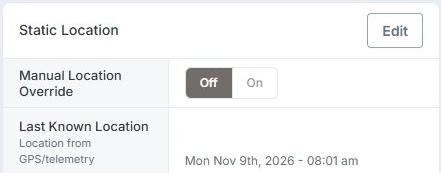 The override is Off and Last Known Location shows the same 9 November timestamp.
- Follow up based on what you see.
- The pin is wrong after the asset moved. With the override off, check whether the location timestamp is before or after the move. If the device has checked in since the move and the pin is still wrong, ask your administrator or Perspio Support to check the location data.
- Snapshot shows No GPS fix and no position. If the device is still checking in, ask the person responsible for it to check whether it is sending GPS positions.
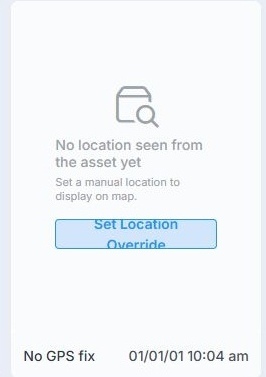 This asset shows No GPS fix and has no reported position on the map.
- The device hasn’t checked in when expected. Start by checking its communication history. See Investigate an Unhealthy asset in Uptime.
Tips & troubleshooting
- Check the date format and time zone before comparing Perspio timestamps with a dispatch or site record.
- When asking for help, include the asset name or ID, expected location, move time if known, map position and timestamp, device Last Seen, and the override setting. Screenshots of both timestamps help Support compare them.