
Overview
Use this guide when you expect an asset to report, but Uptime shows No device. Check the asset’s device list and gather the details an administrator or support can use if the two screens disagree.
Prerequisites
You need access to Uptime and to the asset’s Snapshot. Have the asset name and the date you want to investigate.
Step-by-step instructions
- Find the asset on the affected day. Open Assets → Uptime → Overview. Choose a date range and select the day on the Asset Health chart. Select No device, then enter the asset name in Search assets. Confirm the date above the table. Uptime uses UTC calendar days.
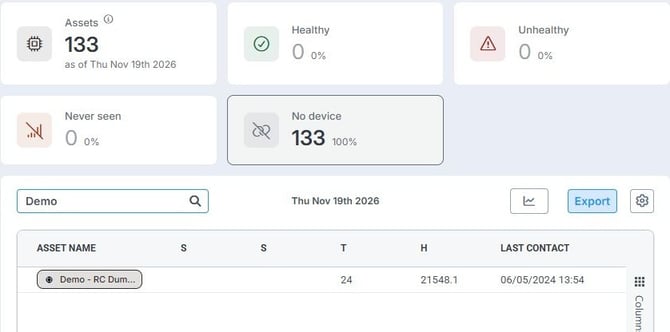 The demo asset appears after selecting No device and searching for Demo.
- Check the asset’s device list. Select the asset name in the table to open its Snapshot. In the right-hand toolbar, select Devices. Note whether the panel lists a device and, if it does, what Last Seen shows:
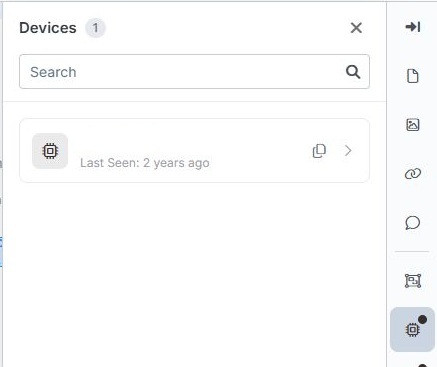 In this example, the asset’s Devices panel lists one device with an older Last Seen time.
- Decide what to do next.
- If Devices is empty and you expect the asset to report, ask your Perspio administrator to check whether the correct device should be linked.
- If Devices lists a device while Uptime shows No device, share the asset name, selected UTC date, and what each screen shows with your administrator or Perspio Support. Include the Last Contact value from the daily table and the Last Seen value from Devices when available.
Tips & troubleshooting
- If the asset disappears after you select No device, select Assets to show all statuses, clear Search assets, and confirm the date and global Filter. See the Uptime Module Overview.
- Never seen means Perspio has never recorded contact from the asset’s linked devices. If you see that status, check the linked device’s Last Seen or ask an administrator to review Device Health.