
Overview
The Variable Inspector is a helper panel available during Workflow configuration that lets you preview and copy available variables (placeholders) for a selected asset. You can then paste those variables into Workflow Conditions and Actions so notifications (Email/SMS) include meaningful asset context when the workflow fires.
It is especially useful to:
-
Insert asset identifiers (e.g., Asset Name, Perspio ID, Customer Asset ID) into Email/SMS content so recipients can immediately identify the affected asset.
-
Use asset master data (including registered Contact Email and Contact Phone, where configured) to avoid hardcoding recipients—Perspio can pull the current values stored against the asset.
-
Include configuration and telemetry values in the notification body to provide operational context.
When configuring notification delivery (Send Email / Send SMS recipients, subject/body, etc.), follow the configuration guidance in the Workflows Module – Actions article, and use the Variable Inspector to populate dynamic values.
Where you can access the Variable Inspector
You will typically see Variable Inspector as a button during workflow setup, most commonly in:
-
Condition step (to understand what data is available for evaluation)
-
Actions step (to insert asset details/config/telemetry into SMS/Email content)
What the Variable Inspector solves
1) Standardised, consistent alerts
Instead of manually typing asset details into every action message, you can insert variables such as:
-
Asset identifiers (name, internal ID)
-
Customer asset references
-
Key dates (e.g., rego expiry, manufactured date)
-
Relevant telemetry (temperature, location, status, etc.—availability depends on the asset/device)
2) Dynamic recipient routing (no hardcoding)
If your asset master contains contact fields, you can reference those values so:
-
The workflow sends alerts to the right contact per asset
-
Updates to asset contacts are automatically respected (no need to edit the workflow each time)
Screen layout and controls
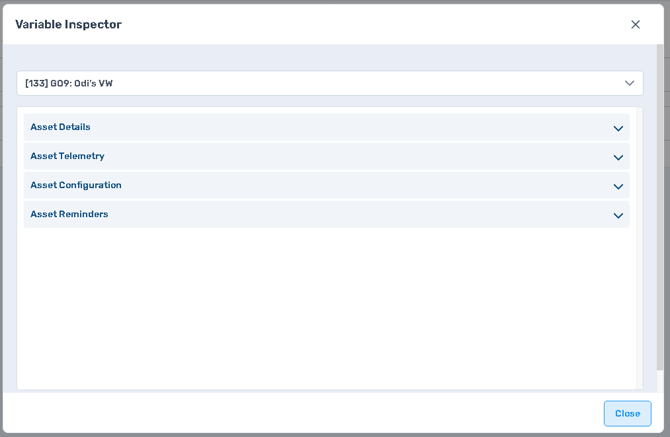
The Variable Inspector opens in a modal (overlay) window.
Header controls
-
Title: Variable Inspector
-
Close (X) (top-right): closes the modal without applying changes.
-
Close button (bottom-right): closes the modal.
Asset selector (top dropdown)
-
Dropdown shows the selected asset whose variables you are previewing.
-
Use it to switch context and verify what values will be available at runtime for a representative asset.
Variable category panels (expand/collapse)
Variables are grouped into expandable sections:
-
Asset Details – master data and identifiers from the asset record.
-
Asset Telemetry – live/last-known telemetry values and device-fed signals (availability depends on integrations/devices).
-
Asset Configuration – configuration fields associated with the asset/device setup.
-
Asset Reminders – reminder/servicing-related fields (where enabled/configured).
Each section has a chevron to expand/collapse.
How to use the Variable Inspector
Step 1 – Open the Variable Inspector
-
While creating or editing a workflow, navigate to the step where Variable Inspector is available (commonly Condition or Actions).
-
Select Variable Inspector to open the modal.
What to check immediately:
-
Confirm the asset selector at the top is set to a relevant asset (one that reflects the data you expect to use).
Step 2 – Expand the category you need
-
Expand a category (e.g., Asset Details) using the chevron.
-
Review available fields and confirm values are populated.
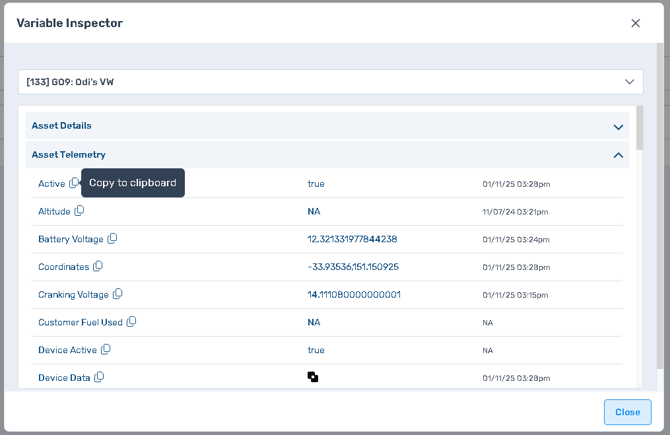
In the expanded view, each row typically includes:
-
Field name (left)
-
Copy icon (beside the field name)
-
Current value (centre column)
-
Last updated / timestamp (right column, where available)
-
Some fields may display NA when not populated/available.
Step 3 – Copy a variable and paste it into your workflow
-
Hover over the copy icon next to the field you want.
-
A tooltip appears (e.g., Copy to clipboard).
-
-
Click the copy icon to copy the variable placeholder.
-
Paste it into the relevant location:
-
Actions → SMS Message
-
Actions → Email Subject / Body
-
(Or other supported text fields in workflow configuration)
-
Best practice for notifications:
-
Include at minimum Asset Name plus a stable identifier like Perspio ID or Customer Asset ID in every alert message.
- The variable will look like: or
Using asset contacts in Actions (Email and SMS)
If contact details are stored against the asset (Asset Master / Asset Details), you can reference them so the workflow automatically routes alerts without typing addresses or phone numbers manually.
Typical outcomes:
-
Send Email recipient can be sourced from the asset’s registered Contact Email.
-
Send SMS recipient can be sourced from the asset’s registered Contact Phone.
Important notes:
-
The variable availability depends on what your tenant has configured and what fields are populated on each asset.
-
For the exact configuration pattern inside Send Email / Send SMS actions (recipient sourcing, templates, formatting), follow Workflows Module – Actions.
Practical examples (recommended patterns)
Example 1 – “Identify the asset instantly”
In your Email/SMS body, include:
-
Asset Name -
-
Perspio ID -
-
Customer Asset ID (if used by the customer) -
Example 2 – “Add operational context”
Add key configuration/telemetry variables such as:
-
Device status or last update time -
-
Relevant sensor reading (e.g., temperature) -
-
Any field directly related to the condition that triggered the workflow
(Exact fields vary by asset type and integrations.)
Example of E-mail or SMS Text
Hello,
We'd like to inform that the asset have a temperature breach.
Temperature:
Last Communicated Time:
The variables inserted will be filled with actual data when the e-mail or SMS is sent.
Troubleshooting and tips
-
Values show “NA”: the field is not populated for that asset or not available in the current data stream. Test using another asset that you know has the relevant data.
-
Telemetry fields missing: confirm the asset has a device assigned and that telemetry is flowing into Perspio.
-
Notifications lack context: ensure you copied and inserted variables into the Action content fields (subject/body/message), not only configured recipients.
-
Inconsistent recipient routing: confirm contact fields are consistently maintained on the asset master records.