---
title: Service Programs
description: Service Programs in act as a container or grouping for one or more Service Schedules, allowing businesses to define maintenance routines across asset groups. By creating programs, users can assign standardised servicing logic to vehicles, plant equipment, or other connected assets, enhancing visibility, planning, and compliance.
---
[Skip to content](https://help.perspio.io/help/service-programs#main-content)
English
Show submenu for translations

Open main navigation
Close main navigation
- English
Show submenu for translations
- [Contact us](mailto:servicedesk@perspio.io)
[Contact us](mailto:servicedesk@perspio.io)
How can we help you?
- There are no suggestions because the search field is empty.
1. [Perspio Help Centre](https://help.perspio.io/help?hsLang=en)
2. [Assets](https://help.perspio.io/help/assets?hsLang=en)
3. [Servicing](https://help.perspio.io/help/assets?hsLang=en#servicing)
# Service Programs
## Service Programs in act as a container or grouping for one or more Service Schedules, allowing businesses to define maintenance routines across asset groups. By creating programs, users can assign standardised servicing logic to vehicles, plant equipment, or other connected assets, enhancing visibility, planning, and compliance.
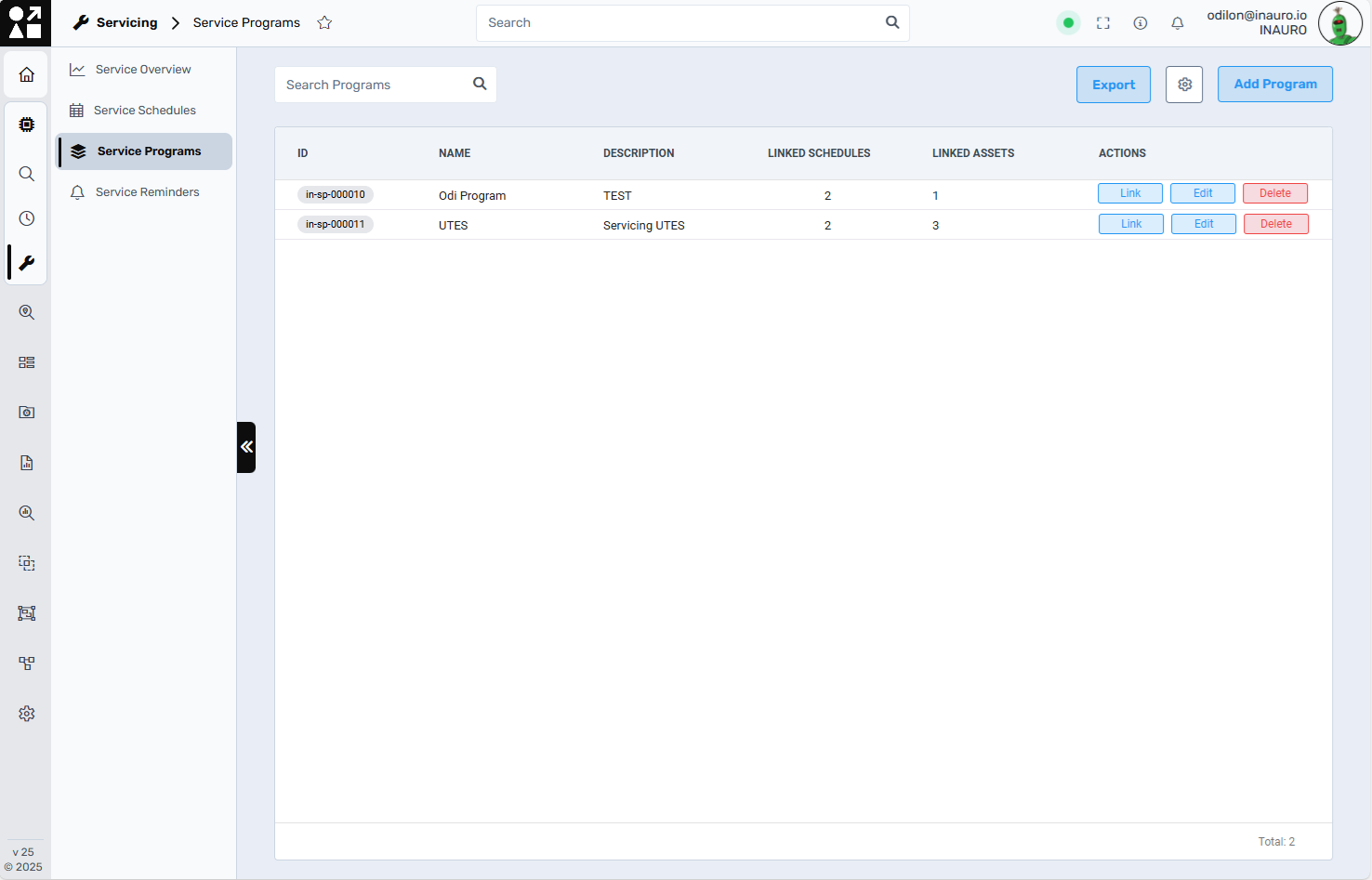
This guide outlines the functionality and layout of the **Service Programs** section within the **Servicing Module**, accessible from the main navigation panel.
#### **Accessing Service Programs**
To begin, navigate to:
> **Servicing (🔧 icon in left menu)** → **Service Programs**
You will be presented with a summary table displaying all existing Service Programs and their metadata:
- **ID**: Unique identifier (auto-generated)
- **Name**: Custom program name
- **Description**: Optional user-provided description
- **Linked Schedules**: Number of associated service schedules
- **Linked Assets**: Number of assets currently assigned to the program
- **Actions**: Controls for linking, editing, or deleting a program
---
#### **Creating a Service Program**
Click **“Add Program”** in the top-right corner.
A modal will appear allowing you to:
- Enter a **Name** (mandatory)
- Enter a **Description** (optional)
- Select one or more **Service Schedules** from the left pane and move them to the right (selected schedules) using the arrow buttons.
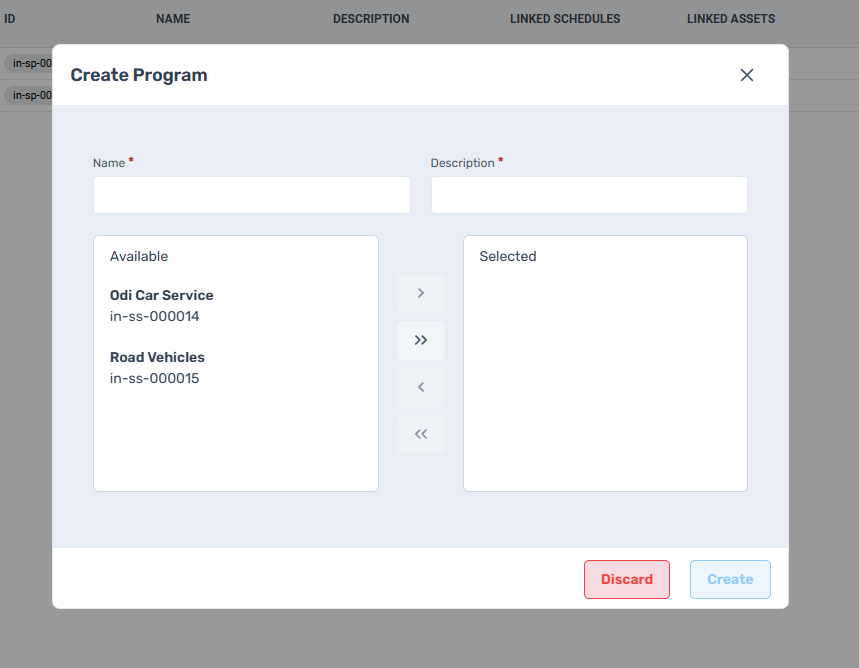
Once configured, click **Create** to finalise.
---
#### **Editing a Service Program**
To update an existing program:
1. Click **Edit** beside the target program.
2. You’ll see the same modal as during creation. You can update:
- Program name
- Description
- Add/remove service schedules using the arrow buttons
Click **Save** once complete.
---
#### **Linking Assets to a Service Program**
To assign assets (e.g., trucks, utes, equipment) to a program:
1. Click the **Link** button in the Actions column.
2. Use the search field to locate assets by name or ID.
3. Select the checkbox beside the desired asset(s).
4. Click **Save** to confirm.
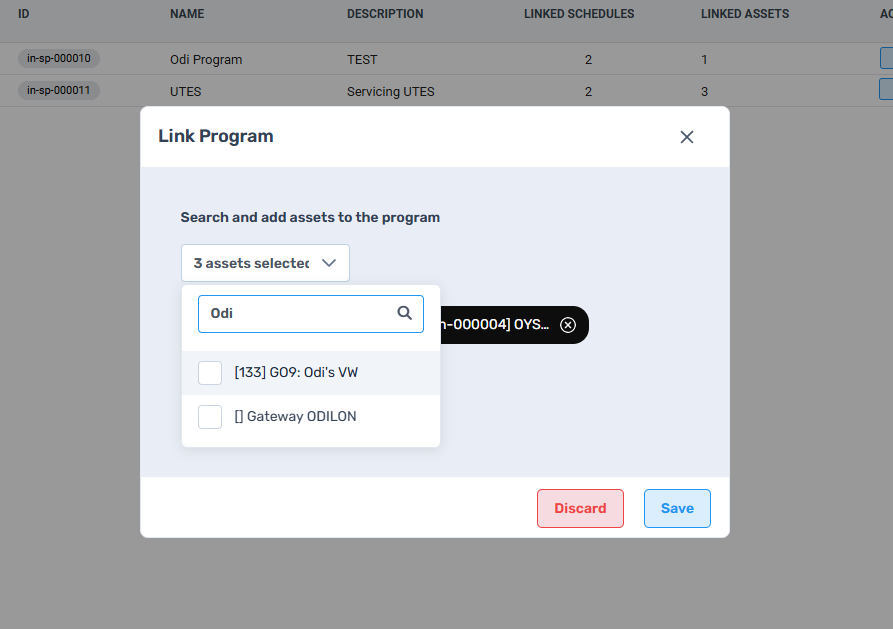
Linked assets will now follow the servicing logic defined by the selected schedules in the program.
---
#### **View Options**
At the top-right corner of the screen, click the gear icon (⚙️) to toggle between:
- **Standard View**: Default layout with wider row spacing
- **Compact View**: Reduces row height to display more entries on screen
Use this setting to optimise your view depending on your screen size or preference.
---
#### **Additional Controls**
- **Export**: Click the **Export** button to download a CSV file of all listed service programs and their details.
- **Delete**: Use the red **Delete** button to permanently remove a service program. Deleting a program will not delete its associated schedules but will unlink all assets.
---
#### **Best Practices**
- Group similar assets (e.g., Utes, Generators, Semi-Trailers) into programs to ensure consistent service logic.
- Keep program names concise and descriptive for easy filtering.
- Use the description field to clarify servicing logic or context.
- Consider creating programs for seasonal servicing or contract-based maintenance plans.
- [Introduction](https://help.perspio.io/help/introduction?hsLang=en#main-content)
- [How to's](https://help.perspio.io/help/introduction?hsLang=en#how-tos)
- [Assets](https://help.perspio.io/help/assets?hsLang=en#main-content)
- [Asset Inspector](https://help.perspio.io/help/assets?hsLang=en#asset-inspector)
- [Utilisation Module](https://help.perspio.io/help/assets?hsLang=en#utilisation-module)
- [Configuration](https://help.perspio.io/help/assets?hsLang=en#configuration)
- [Events](https://help.perspio.io/help/assets?hsLang=en#events)
- [Servicing](https://help.perspio.io/help/assets?hsLang=en#servicing)
- [Asset Configuration](https://help.perspio.io/help/assets?hsLang=en#asset-configuration)
- [Device Configuration](https://help.perspio.io/help/assets?hsLang=en#device-configuration)
- [Explorer](https://help.perspio.io/help/explorer?hsLang=en)
- [Dashboards](https://help.perspio.io/help/dashboards?hsLang=en#main-content)
- [Configuration](https://help.perspio.io/help/dashboards?hsLang=en#configuration)
- [Reports](https://help.perspio.io/help/reports?hsLang=en#main-content)
- [Available Reports](https://help.perspio.io/help/reports?hsLang=en#available-reports)
- [Groups](https://help.perspio.io/help/groups?hsLang=en#main-content)
- [Security Groups](https://help.perspio.io/help/groups?hsLang=en#security-groups)
- [Asset Groups](https://help.perspio.io/help/groups?hsLang=en#asset-groups)
- [Geofences](https://help.perspio.io/help/geofences?hsLang=en)
- [Workflows](https://help.perspio.io/help/workflows?hsLang=en)
- [Administration](https://help.perspio.io/help/administration?hsLang=en#main-content)
- [Settings Module](https://help.perspio.io/help/administration?hsLang=en#settings-module)
- [Admin Panel](https://help.perspio.io/help/administration?hsLang=en#admin-panel)
- [Devices](https://help.perspio.io/help/devices?hsLang=en#main-content)
- [Troubleshooting](https://help.perspio.io/help/devices?hsLang=en#troubleshooting)
- [Installation Guides](https://help.perspio.io/help/devices?hsLang=en#installation-guides)
[](https://perspio.io)
2/50 Yeo St, Neutral Bay NSW 2089
[mailto:servicedesk@perspio.io](mailto:servicedesk@perspio.io)
Copyright © 2026 Inauro