---
title: Schema Menu
description: The Schema menu lets you view and manage the categories and types of data Perspio ingests.
---
[Skip to content](https://help.perspio.io/help/schema-menu#main-content)
English
Show submenu for translations

Open main navigation
Close main navigation
- English
Show submenu for translations
- [Contact us](mailto:servicedesk@perspio.io)
[Contact us](mailto:servicedesk@perspio.io)
How can we help you?
- There are no suggestions because the search field is empty.
1. [Perspio Help Centre](https://help.perspio.io/help?hsLang=en)
2. [Administration](https://help.perspio.io/help/administration?hsLang=en)
3. [Admin Panel](https://help.perspio.io/help/administration?hsLang=en#admin-panel)
# Schema Menu
## The Schema menu lets you view and manage the categories and types of data Perspio ingests.
### What are Schemas?
In Perspio, a **schema** is a predefined template that tells the system how to handle and display data for a given asset. When assigning a schema to an asset, we’re effectively saying:
- **What kind of thing it is** (e.g., a vehicle, a refrigeration unit, a piece of heavy plant machinery)
- **Which device or sensor is installed** (e.g., an OBD-II dongle, a temperature logger, a LoRaWAN gateway)
Together, those two pieces determine:
1. **Which data fields to expect** — GPS location, speed, temperature, battery level, fault codes, etc.
2. **How to interpret incoming messages** — mapping raw readings into events like “Engine On,” “Temperature Alert,” or “Low Battery”, hence generating **Events**.
3. **Which data can be used in dashboards, reports, and workflows apply** — so you only see relevant charts, notifications, and automated actions for that asset type.
By using the correct schema, Perspio ensures every asset is classified correctly, data streams smoothly, and your monitoring tools stay organized and meaningful.
---
#### **Tabs & Sections**
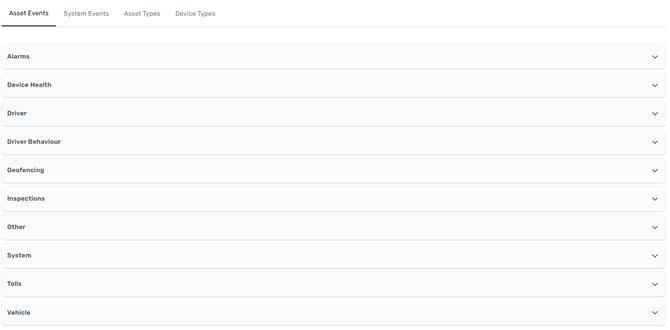
### 1. Asset Events
Defines the kinds of events tied to your assets:
- **Alarms** – Critical alerts (e.g. temperature out-of-range)
- **Device Health** – Battery, signal strength, firmware status
- **Driver** – Ignition on/off, driver ID reads
- **Driver Behaviour** – Harsh braking, acceleration, speeding
- **Geofencing** – Enter/exit zone triggers
- **Inspections** – Uploaded checklist results
- **Other** – Miscellaneous or custom events
- **System** – Perspio-generated events related to asset processing
- **Tolls** – Toll-booth passages and toll charges
- **Vehicle** – Odometer readings, engine faults
Click each accordion to see a full list of event names and descriptions.
You can edit the Event Criticalityallity and hide/show from the UI. More info on this [article](https://8189031.hs-sites.com/help/how-to-hide-events-from-the-ui?hsLang=en).
---
### 2. System Events
Shows background jobs and platform-level notifications such as:
- Scheduled imports.
- Data retention tasks.
- Integration health checks.
This screen only displays the criticalityallity level of each event. It's not possible to hide System Events/Jobs notifications from the UI.
---
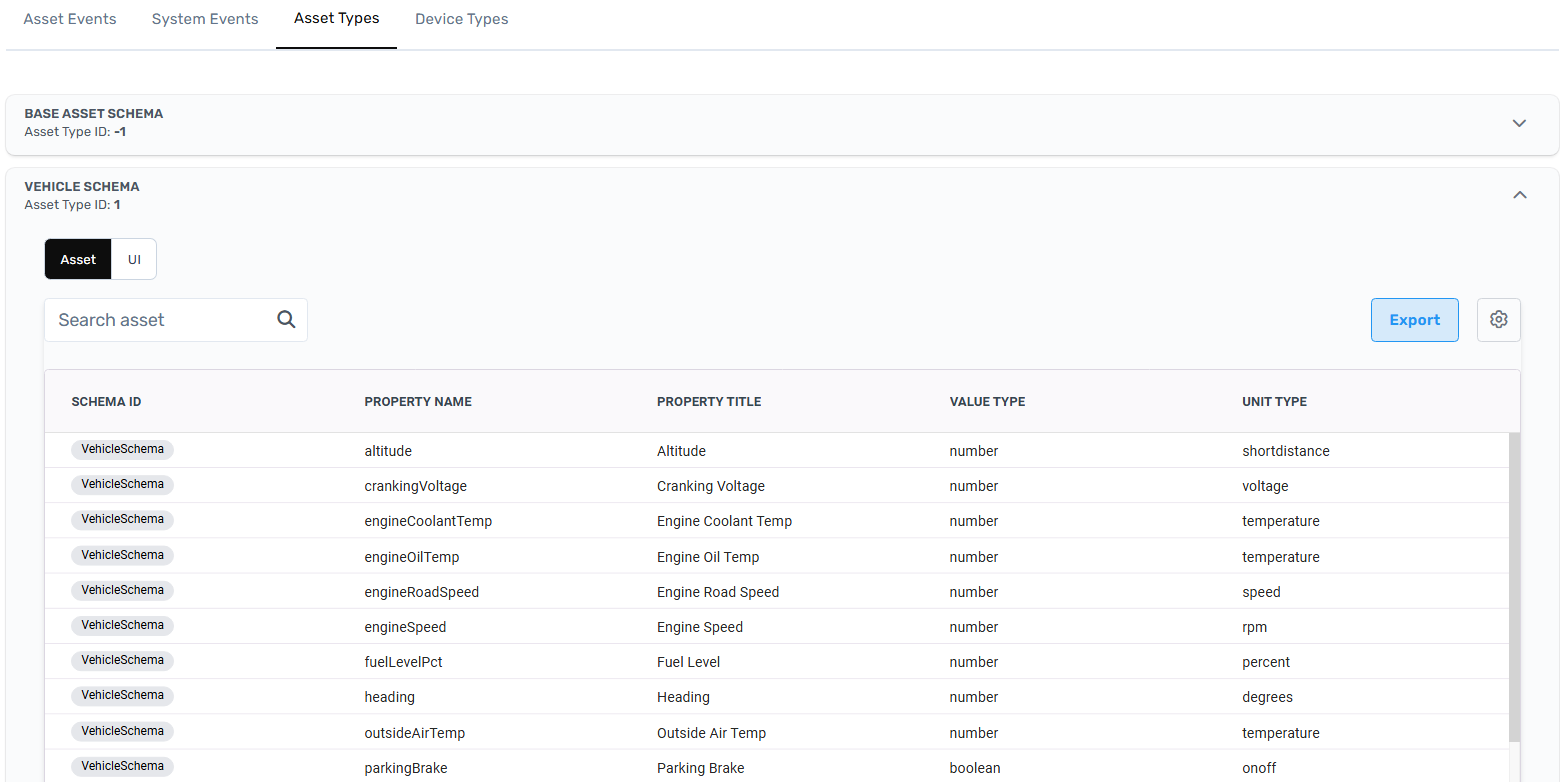
### 3. Asset Types
This tab lists every “type” of asset you track in Perspio, each with its own schema defining expected fields, events, and UI behaviours such as Asset Snapshot. Assigning the correct asset type ensures your data is interpreted, filtered, and displayed accurately across dashboards, reports, and workflows.
This screen allows the user to browse all Perspio schemas and visualize the data each schema collects. It is also possible to **Export** a schema as CSV and Excel.
---
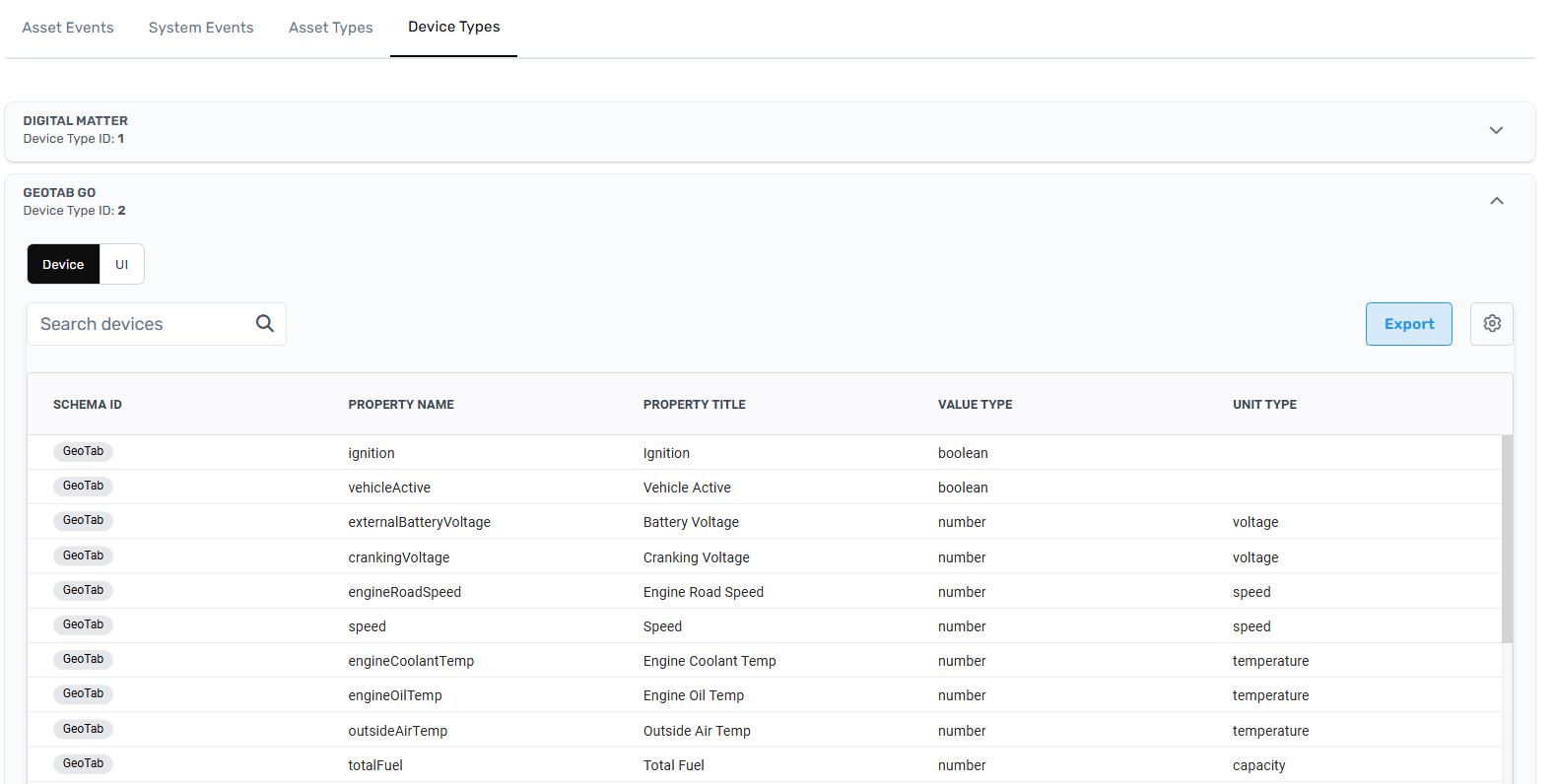
### 4. Device Types
This tab lets you inspect every hardware model or sensor class that feeds telemetry into Perspio. Proper device type configuration ensures incoming data is correctly parsed, displayed, and mapped to the right assets and events.
This screen allows the user to browse all Perspio device types and visualize the data each device collects. It is also possible to **Export** a schema as CSV and Excel.
- [Introduction](https://help.perspio.io/help/introduction?hsLang=en#main-content)
- [How to's](https://help.perspio.io/help/introduction?hsLang=en#how-tos)
- [Assets](https://help.perspio.io/help/assets?hsLang=en#main-content)
- [Asset Inspector](https://help.perspio.io/help/assets?hsLang=en#asset-inspector)
- [Utilisation Module](https://help.perspio.io/help/assets?hsLang=en#utilisation-module)
- [Configuration](https://help.perspio.io/help/assets?hsLang=en#configuration)
- [Events](https://help.perspio.io/help/assets?hsLang=en#events)
- [Servicing](https://help.perspio.io/help/assets?hsLang=en#servicing)
- [Asset Configuration](https://help.perspio.io/help/assets?hsLang=en#asset-configuration)
- [Device Configuration](https://help.perspio.io/help/assets?hsLang=en#device-configuration)
- [Explorer](https://help.perspio.io/help/explorer?hsLang=en)
- [Dashboards](https://help.perspio.io/help/dashboards?hsLang=en#main-content)
- [Configuration](https://help.perspio.io/help/dashboards?hsLang=en#configuration)
- [Reports](https://help.perspio.io/help/reports?hsLang=en#main-content)
- [Available Reports](https://help.perspio.io/help/reports?hsLang=en#available-reports)
- [Groups](https://help.perspio.io/help/groups?hsLang=en#main-content)
- [Security Groups](https://help.perspio.io/help/groups?hsLang=en#security-groups)
- [Asset Groups](https://help.perspio.io/help/groups?hsLang=en#asset-groups)
- [Geofences](https://help.perspio.io/help/geofences?hsLang=en)
- [Workflows](https://help.perspio.io/help/workflows?hsLang=en)
- [Administration](https://help.perspio.io/help/administration?hsLang=en#main-content)
- [Settings Module](https://help.perspio.io/help/administration?hsLang=en#settings-module)
- [Admin Panel](https://help.perspio.io/help/administration?hsLang=en#admin-panel)
- [Devices](https://help.perspio.io/help/devices?hsLang=en#main-content)
- [Troubleshooting](https://help.perspio.io/help/devices?hsLang=en#troubleshooting)
- [Installation Guides](https://help.perspio.io/help/devices?hsLang=en#installation-guides)
[](https://perspio.io)
2/50 Yeo St, Neutral Bay NSW 2089
[mailto:servicedesk@perspio.io](mailto:servicedesk@perspio.io)
Copyright © 2026 Inauro