
Overview
In Perspio Workflows, Scheduling and Suppression control when a workflow is allowed to monitor and trigger, and how often it can fire actions once a condition is met.
Used correctly, these settings prevent:
-
Alerts firing outside business hours
-
Duplicate notifications for the same ongoing issue
-
“Alert storms” caused by noisy telemetry or frequent updates
What Scheduling and Suppression do
Scheduling
Scheduling defines the time windows when Perspio will monitor updates and evaluate your workflow condition.
Common outcomes:
-
Always monitor (24/7)
-
Monitor only during defined date ranges (e.g., seasonal operations)
-
Monitor only during specific times/days (e.g., business hours)
Suppression
Suppression defines how Perspio should handle repeat triggers when a condition stays true or keeps re-occurring.
Common outcomes:
-
Trigger once until the condition clears (best for incident-style alerts)
-
Trigger repeatedly (not recommended unless intentionally designed)
-
Trigger once, then “cool down” for a set period
Where to configure Scheduling and Suppression
Scheduling and Suppression are configured in the Add Workflow Wizard → Step 4: Schedule, after you complete:
-
Details
-
Scope
-
Condition
This step includes two main sections:
-
Schedule (Always-On vs Recurring)
-
Suppression (Until False / None / Until Custom Timeout)
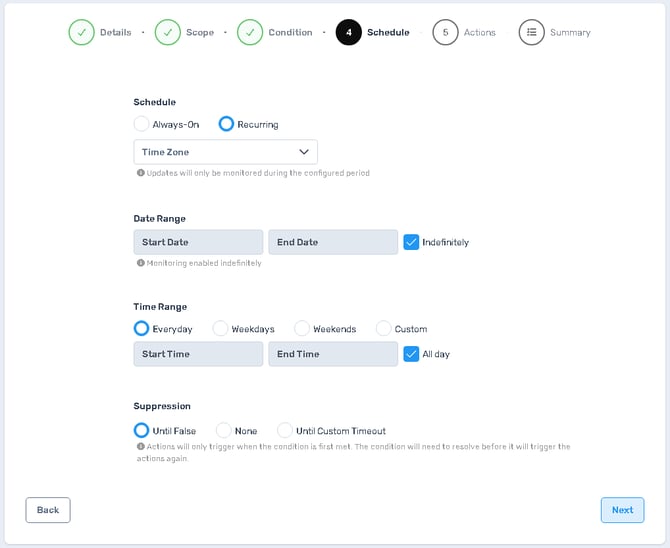
Schedule configuration (screen controls)
Schedule mode
At the top of the step, choose one:
Always-On
-
Workflow monitoring is active continuously.
-
Best for critical alerts that must trigger anytime (e.g., safety, cold-chain breaches, device offline).
Recurring
-
Monitoring is active only during the configured period.
-
The UI notes that updates will only be monitored during the configured window.
-
Best for workflows that should only operate during business hours, shifts, or scheduled operating windows.
Time Zone
Time Zone dropdown determines how Perspio interprets the schedule’s date/time fields.
Use this to ensure:
-
Business-hour workflows run on the correct local time
-
Regional teams don’t get notifications at the wrong time
-
Scheduled checks line up with customer operating hours
Best practice: Set the Time Zone to the operating region of the assets or the recipients who will act on the alerts.
Date Range
Date Range controls when the schedule starts and ends.
Controls
-
Start Date: when monitoring begins
-
End Date: when monitoring stops
-
Indefinitely checkbox: when enabled, the workflow continues without an end date
When to use
-
Indefinitely for ongoing operational workflows
-
Start/End dates for:
-
projects or trials
-
seasonal operations
-
temporary monitoring windows
-
Time Range
Time Range controls which days and times monitoring is active.
Day selection options
-
Everyday
-
Weekdays
-
Weekends
-
Custom (define specific days)
Time controls
-
Start Time and End Time define the daily monitoring window.
-
All day checkbox: when enabled, monitoring runs 00:00–23:59 for the selected days (start/end time fields become unnecessary).
Common scheduling patterns
-
Business hours: Weekdays + 09:00–17:00
-
After-hours monitoring: Weekdays + 17:00–09:00 (depending on your operational approach)
-
Shift windows: Custom + exact shift times
-
Weekend-only operations: Weekends + All day
Suppression configuration (screen controls)
Suppression determines how Perspio behaves after the workflow condition triggers.
Options
Until False
-
Actions trigger when the condition becomes true.
-
The workflow will not trigger again until the condition becomes false (resolves) and later becomes true again.
-
This is the most common and safest suppression setting for alerts.
Best for:
-
Incident-style alerts (temperature excursion, door open, offline, geofence breach)
-
Reducing duplicate notifications while a fault remains active
None
-
No suppression is applied.
-
Actions may trigger repeatedly depending on how often the platform evaluates the condition and receives updates.
Use with caution.
Only use this when repeated notifications are intentional and acceptable.
Best for:
-
Rare cases where each evaluation must notify (generally avoid for SMS/email alerts)
Until Custom Timeout
-
After triggering, the workflow suppresses additional triggers for a defined cooldown window.
-
Once the timeout expires, the workflow can trigger again even if the condition is still true (depending on your condition design).
Best for:
-
Noisy conditions where you want periodic reminders (e.g., “still offline” every 2 hours)
-
Controlled escalation patterns (e.g., notify again after 60 minutes if not resolved)
How Scheduling and Suppression work together
Think of them as two filters:
-
Schedule decides whether the workflow is allowed to monitor right now
-
Suppression decides whether the workflow is allowed to fire again after it triggered
Example:
-
A workflow may detect a condition at 02:00, but if Schedule is Weekdays 09:00–17:00, it won’t evaluate/trigger until the next allowed window.
-
A workflow may remain true for hours; Until False ensures you get one notification per incident, not one per telemetry update.
Recommended configurations (practical examples)
1) Critical operational alert (24/7)
Use: Always-On + Until False
Example: Temperature out of range, door open, panic/duress
Goal: Immediate notification, only once per incident
2) Business-hours notifications
Use: Recurring (Weekdays, 09:00–17:00) + Until False
Example: Non-critical reminders, operational alerts for teams that only respond in-hours
Goal: Prevent out-of-hours noise while keeping incident behaviour clean
3) “Still an issue” reminders
Use: Always-On or Recurring + Until Custom Timeout
Example: Device offline; notify immediately, then again every 2 hours until resolved
Goal: Controlled follow-up without spamming
4) Scheduled reporting behaviour (paired with Scheduled workflow type)
Use: Recurring + All day (if needed) + suppression usually less critical
Example: Daily 06:00 summary emails
Goal: Time-based actions; suppression typically secondary because the trigger itself is time-based
Best practices
-
Default to Until False unless you have a specific reason not to.
-
Use Recurring schedules for teams that do not respond outside defined hours.
-
For high-volume telemetry, use Until False or a Custom Timeout to prevent repeated messages.
-
When sending Email/SMS, use Variable Inspector to include asset identifiers and context so alerts are immediately actionable (Asset Name, IDs, key telemetry).
Troubleshooting
“The workflow isn’t triggering
-
Confirm Schedule is Always-On or your current time is within the Recurring window.
-
Confirm Time Zone is correct.
-
If using date range, confirm Start Date has passed and End Date hasn’t been reached.
The workflow triggers too often
-
Set Suppression to Until False or Until Custom Timeout.
-
Tighten the condition so it triggers only when meaningful.
-
Review whether the workflow should be Continuous vs Periodic (see Workflow Types article).
It triggered once and never again
-
If Suppression is Until False, the condition must resolve (become false) before it can trigger again.
-
Validate the condition is actually clearing between incidents.