---
title: Proximity Search
description: Find assets near a location using Live proximity or investigate past proximity using Historical searches.
---
[Skip to content](https://help.perspio.io/help/proximity-search#main-content)
English
Show submenu for translations

Open main navigation
Close main navigation
- English
Show submenu for translations
- [Contact us](mailto:servicedesk@perspio.io)
[Contact us](mailto:servicedesk@perspio.io)
How can we help you?
- There are no suggestions because the search field is empty.
1. [Perspio Help Centre](https://help.perspio.io/help?hsLang=en)
2. [Explorer](https://help.perspio.io/help/explorer?hsLang=en)
# Proximity Search
## Learn how to use Proximity Search in Perspio Explorer to find assets near a point of interest. This guide explains Live vs Historical searches, POI and radius controls, map tools, running queries, interpreting results, and troubleshooting missing or unexpected matches.
#### Overview
**Proximity Search** helps you find **assets near a point of interest (POI)** using location data reported by **devices connected to those assets**. It is designed for operational decisions (who is closest right now) and investigations (who was near a location during a specific time window).
Proximity Search is important because it enables you to:
- locate nearby assets for dispatch, recovery, or on-site work
- validate asset presence at a customer site or incident location
- investigate historical movements for audits, claims, and operational reviews
---
#### Live vs Historical: what’s the difference?
### Live (current proximity)
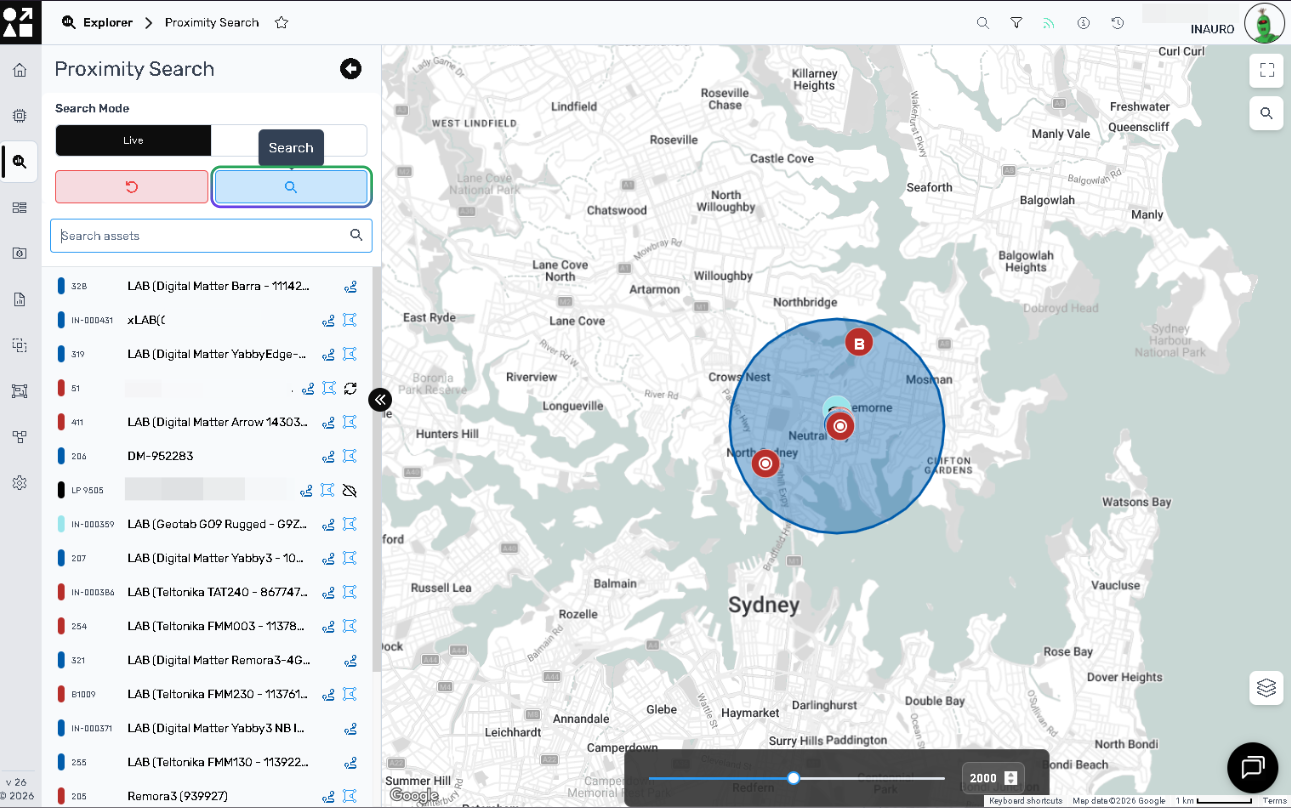
**Live** searches and monitors assets based on their **current live locations** (latest reported position). It’s ideal for real-time oversight and immediate response scenarios.
### Historical (past proximity)
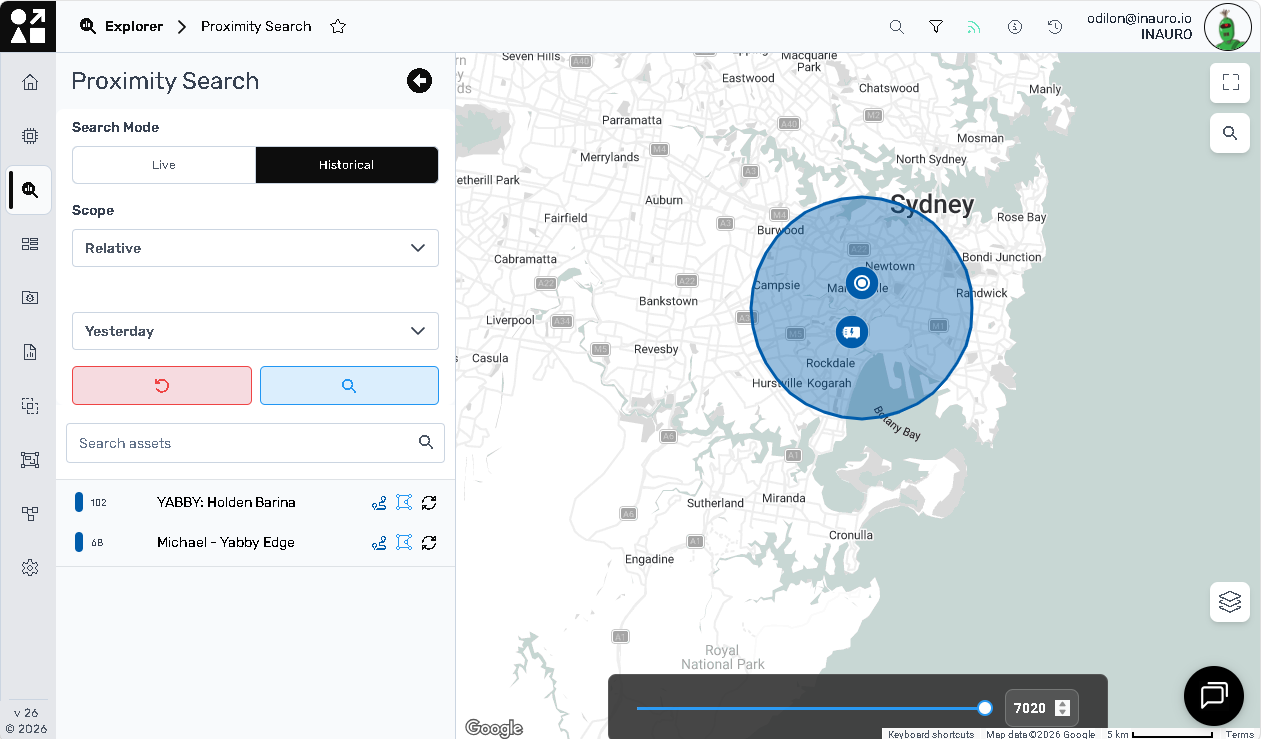
**Historical** searches asset locations **over a specified timeframe**, identifying assets that were within a defined radius during the selected period. It’s critical for retrospective analysis, audits, and incident investigation.
---
#### Before you start
- You need access to **Explorer** (or your tenant’s Search/Explorer area where Proximity Search is available).
- Assets must have a data source providing **location telemetry** (GPS or equivalent).
- For **Historical**, your tenant must retain location history for the date range you select.
---
#### Open Proximity Search
1. From the left navigation, select **Explorer**.
2. Select **Proximity Search** (either from the left Explorer list or the Proximity Search card on the landing page).

---
#### Proximity Search screen: key controls and usability
### Mode selector: Live vs Historical
Use this control to switch the search behaviour:
- **Live**: searches using current asset locations.
- **Historical**: enables date/time controls and searches during a selected period.
### POI input (search point)
Define the centre point of the search using either:
- **Address**, or
- **Latitude/longitude coordinates**.
### Radius controls
Set how far from the POI to search. Historical Proximity Search includes an **interactive radius definition** that you can adjust dynamically.
### Map interaction tools
Proximity Search typically includes map controls such as:
- **Zoom controls** (for better context/precision)
- **Drag & drop** repositioning (move the radius circle to the exact area of interest)
- **Theme/layer toggle** (map view options such as satellite/terrain, tenant-dependent)
### Run/Query button
Executes the search and returns matching assets in the selected area (and timeframe for Historical).
### Results list and asset tools
Historical results commonly provide tools next to each asset to:
- zoom to asset
- view its activity on the day
- view geofences it’s in
---
#### Perform a Live Proximity Search
Use Live when you need to know what’s near a location **right now**.
1. Open **Proximity Search** and select **Live**.
2. Enter the POI (address or coordinates).
3. Set the **radius** to define the search area.
4. Adjust the search circle on the map if needed (drag to position precisely).
5. Select **Run Query** (or equivalent) to return assets currently within the radius.
6. Review results and open/zoom to assets as required.
**When Live is best**
- dispatching the closest asset to a job
- identifying nearby assets for retrieval
- live operational oversight
---
#### Perform a Historical Proximity Search
Use Historical when you need to know which assets were near a location **during a past timeframe**.
1. Open **Proximity Search** and switch to **Historical**.
2. Set the **date range** for the search period (use exact timestamps where possible).
3. Enter the POI (address or coordinates).
4. Adjust the radius using the radius control/slider.
5. Drag the radius circle to the precise map location (if required).
6. Use zoom controls to refine accuracy.
7. Select **Run Query**.
8. Use the result tools to zoom to assets, review activity, and check geofence context (where available).
**When Historical is best**
- incident investigation (“which asset was here at that time?”)
- operational audits and retrospective reviews
- route and utilisation analysis
---
#### Troubleshooting and common pitfalls
### No assets returned (Live or Historical)
- Increase the **radius** to confirm the search point is correct.
- Confirm the POI (address/coordinates) is accurate.
- Confirm assets have **location telemetry** reporting (device connectivity/data flow).
### Live results look incorrect
- Live is based on current reported locations; if a device hasn’t reported recently, the “current” position may be stale (validate device reporting and timestamps where available).
### Historical results missing expected assets
- Expand the time window slightly to account for reporting intervals and gaps.
- Confirm the tenant retains history for the selected timeframe.
- Check time zone assumptions when selecting date/time ranges.
- [Introduction](https://help.perspio.io/help/introduction?hsLang=en#main-content)
- [How to's](https://help.perspio.io/help/introduction?hsLang=en#how-tos)
- [Assets](https://help.perspio.io/help/assets?hsLang=en#main-content)
- [Asset Inspector](https://help.perspio.io/help/assets?hsLang=en#asset-inspector)
- [Utilisation Module](https://help.perspio.io/help/assets?hsLang=en#utilisation-module)
- [Configuration](https://help.perspio.io/help/assets?hsLang=en#configuration)
- [Events](https://help.perspio.io/help/assets?hsLang=en#events)
- [Servicing](https://help.perspio.io/help/assets?hsLang=en#servicing)
- [Asset Configuration](https://help.perspio.io/help/assets?hsLang=en#asset-configuration)
- [Device Configuration](https://help.perspio.io/help/assets?hsLang=en#device-configuration)
- [Explorer](https://help.perspio.io/help/explorer?hsLang=en)
- [Dashboards](https://help.perspio.io/help/dashboards?hsLang=en#main-content)
- [Configuration](https://help.perspio.io/help/dashboards?hsLang=en#configuration)
- [Reports](https://help.perspio.io/help/reports?hsLang=en#main-content)
- [Available Reports](https://help.perspio.io/help/reports?hsLang=en#available-reports)
- [Groups](https://help.perspio.io/help/groups?hsLang=en#main-content)
- [Security Groups](https://help.perspio.io/help/groups?hsLang=en#security-groups)
- [Asset Groups](https://help.perspio.io/help/groups?hsLang=en#asset-groups)
- [Geofences](https://help.perspio.io/help/geofences?hsLang=en)
- [Workflows](https://help.perspio.io/help/workflows?hsLang=en)
- [Administration](https://help.perspio.io/help/administration?hsLang=en#main-content)
- [Settings Module](https://help.perspio.io/help/administration?hsLang=en#settings-module)
- [Admin Panel](https://help.perspio.io/help/administration?hsLang=en#admin-panel)
- [Devices](https://help.perspio.io/help/devices?hsLang=en#main-content)
- [Troubleshooting](https://help.perspio.io/help/devices?hsLang=en#troubleshooting)
- [Installation Guides](https://help.perspio.io/help/devices?hsLang=en#installation-guides)
[](https://perspio.io)
2/50 Yeo St, Neutral Bay NSW 2089
[mailto:servicedesk@perspio.io](mailto:servicedesk@perspio.io)
Copyright © 2026 Inauro