---
title: Profiles Tab
description: Assign custom counter, working-hours, and document profiles to an individual asset.
---
[Skip to content](https://help.perspio.io/help/profiles-tab#main-content)
English
Show submenu for translations

Open main navigation
Close main navigation
- English
Show submenu for translations
- [Contact us](mailto:servicedesk@perspio.io)
[Contact us](mailto:servicedesk@perspio.io)
How can we help you?
- There are no suggestions because the search field is empty.
1. [Perspio Help Centre](https://help.perspio.io/help?hsLang=en)
2. [Assets](https://help.perspio.io/help/assets?hsLang=en)
3. [Configuration](https://help.perspio.io/help/assets?hsLang=en#configuration)
# Profiles Tab
## Learn how to use the Profiles tab in Perspio Asset Configuration. This guide explains Custom Counters, Custom Counter Values, Working Hours Profiles, and Document Profiles, including how to edit, select, save, and validate each asset-level profile setting.
### Overview
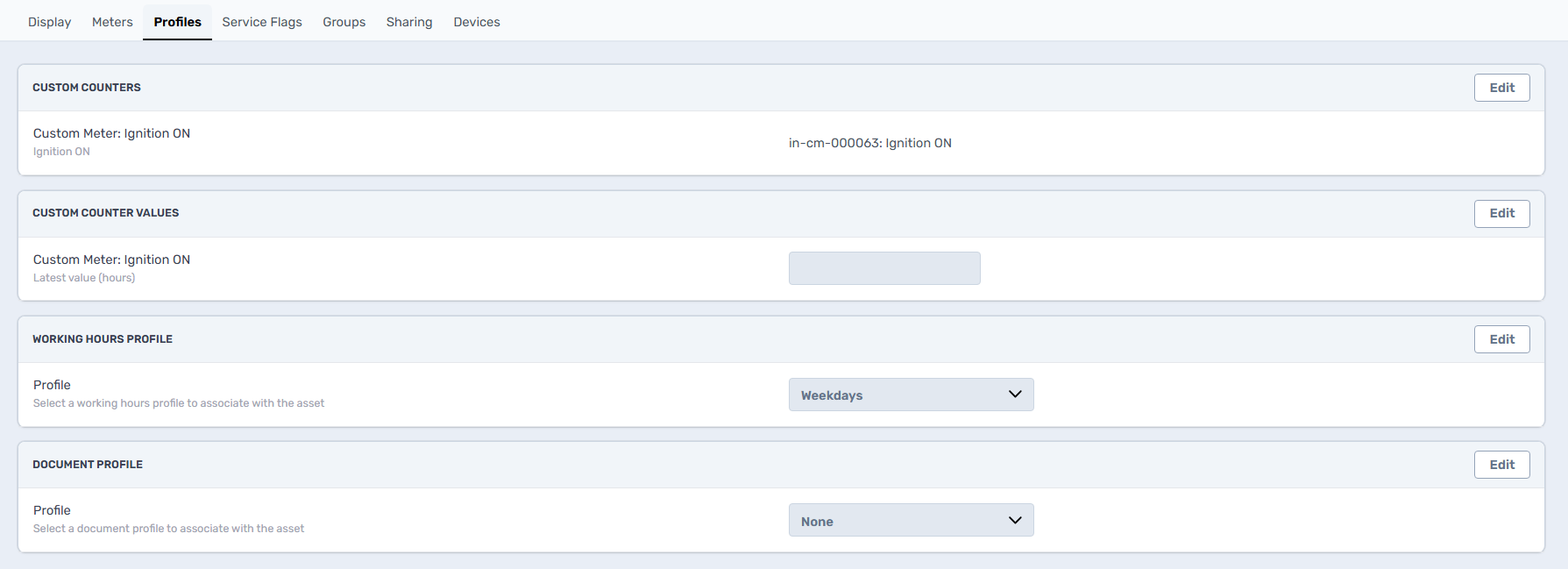
The **Profiles** tab in Asset Configuration is used to associate configuration profiles with an individual asset. These profiles control asset-specific settings such as custom counters, working hours, and document requirements.
This tab is different from **Admin → Profiles**, which manages user access. The Profiles tab in Asset Configuration applies profiles to the selected **asset**, not to a Perspio user.
Why this is important
Using the correct asset profiles helps ensure that the asset follows the intended operational setup.
Profiles can be used to:
- Apply the correct custom counter to an asset
- Review or maintain the related counter value
- Set the asset’s working-hours pattern
- Associate document requirements or document structures with the asset
- Maintain consistent configuration across similar assets
---
### Where to Find the Profiles Tab
1. Open the **Asset Inspector**.
2. Select the required asset.
3. Open **Configuration Menu** from the asset navigation.
4. Select the **Profiles** tab.
The asset header identifies the asset currently being configured. Use the breadcrumb trail or **Back to Assets** control to return to the asset list when required.
---
### Profiles Tab Screen Controls
### Section Cards
Each profile type appears in its own section card. This keeps related settings separate and reduces the risk of changing an unrelated configuration item.
### Edit
Each section includes an **Edit** button.
Select **Edit** to make changes only within that section. Until Edit is selected, the fields are generally view-only.
### Dropdown fields
Where a profile can be assigned, a dropdown field is available.
Select the dropdown arrow to review available options and choose the profile that should apply to the asset.
### Save and Cancel
After entering Edit mode, use the available save controls to apply changes. Use Cancel, Undo, or the equivalent control to discard unsaved changes and restore the previously saved configuration.
---
### Profile settings available Custom Counters
The **Custom Counters** section associates a custom counter with the asset.
A custom counter can be used where the asset needs to track a specific operational value that is separate from standard meters such as Odometer or Run Hours.
Examples may include:
- Ignition-on duration
- Pump operation time
- Refrigeration runtime
- Machine cycles
- Another customer-specific operational counter
### How to update a Custom Counter
1. Select **Edit** in the Custom Counters section.
2. Choose the required custom counter or counter profile.
3. Confirm it is appropriate for the selected asset.
4. Save the update.
### Important
Only assign a counter that is supported by the asset’s device, telemetry configuration, or operational process. Assigning the wrong custom counter may result in missing or misleading values.
---
### Custom Counter Values
The **Custom Counter Values** section shows the value associated with the configured custom counter.
This may include the latest recorded value or a value maintained as part of the counter configuration, depending on the selected counter and tenant setup.
### How to update a Custom Counter Value
1. Select **Edit** in the Custom Counter Values section.
2. Review the selected custom counter.
3. Update the value only where your configuration and permissions allow it.
4. Save the change.
### Important
Changing a counter value should be done carefully. Confirm whether the value is device-generated, integration-sourced, or manually maintained before editing it.
---
### Working Hours Profile
The **Working Hours Profile** section assigns an operating-hours pattern to the asset.
This profile identifies the days and times the asset is expected to operate. It can support consistent handling of time-based asset activities where working-hours settings are used.
Examples may include:
- Weekdays
- Weekends
- Standard business hours
- Night shift
- Custom site or customer operating hours
### How to update a Working Hours Profile
1. Select **Edit** in the Working Hours Profile section.
2. Open the **Profile** dropdown.
3. Select the appropriate working-hours profile.
4. Save the update.
### Best practice
Apply the same working-hours profile to assets that operate under the same schedule. This improves consistency across operational reviews and time-based processes.
---
### Document Profile
The **Document Profile** section associates a document profile with the asset.
A document profile can define the document-related structure or requirements applicable to that asset, depending on the features enabled in your tenant.
It pre-populate the right side drawer of Files, Images and Links.
Examples may include:
- Required compliance documents
- Service documentation
- Asset manuals
- Inspection-related documents
- Cstomer-specific document requirements
### How to update a Document Profile
1. Select **Edit** in the Document Profile section.
2. Open the **Profile** dropdown.
3. Select the required document profile, or choose **None** where no document profile should apply.
4. Save the update.
### Best practice
Use document profiles consistently for similar asset types, especially where compliance or operational documentation is required.
---
### Recommended process for updating profiles
When changing any profile on an asset:
1. Confirm you have opened the correct asset.
2. Identify the specific profile section that needs updating.
3. Select **Edit** only for that section.
4. Choose the correct profile or value.
5. Save the change.
6. Review the updated selection after saving.
Avoid changing multiple profile types unless required, particularly when troubleshooting a specific issue.
---
### Best practices
- Use standard profiles for similar asset types wherever possible.
- Confirm the asset’s device and operational setup before assigning a Custom Counter.
- Review custom counter values carefully before editing.
- Apply Working Hours Profiles consistently across assets with the same operating schedule.
- Use Document Profiles where the asset requires structured compliance or operational documentation.
- Keep profile assignments aligned with the current asset purpose, customer, and site requirements.
---
### Troubleshooting
### I cannot edit a profile
Confirm that:
- you are in **Configuration → Profiles**
- you selected **Edit** for the relevant section
- your user access allows Asset Configuration changes
### The profile I need is not available
The profile may not have been created in the tenant yet, or it may not be available for the selected asset configuration. Contact an administrator to confirm the profile setup.
More information **[here](https://help.perspio.io/help/profiles-menu?hsLang=en)**.
### The custom counter does not show a value
Check whether:
- The counter is correctly assigned
- The asset device supports the required telemetry
- The counter is device-generated, integration-sourced, or manually maintained
- The latest data has been received by Perspio
### I selected the wrong profile
Select **Edit** for that section, choose the correct profile, and save. Use Cancel or Undo before saving if the change has not yet been committed.
- [Introduction](https://help.perspio.io/help/introduction?hsLang=en#main-content)
- [How to's](https://help.perspio.io/help/introduction?hsLang=en#how-tos)
- [Assets](https://help.perspio.io/help/assets?hsLang=en#main-content)
- [Asset Inspector](https://help.perspio.io/help/assets?hsLang=en#asset-inspector)
- [Utilisation Module](https://help.perspio.io/help/assets?hsLang=en#utilisation-module)
- [Configuration](https://help.perspio.io/help/assets?hsLang=en#configuration)
- [Events](https://help.perspio.io/help/assets?hsLang=en#events)
- [Servicing](https://help.perspio.io/help/assets?hsLang=en#servicing)
- [Asset Configuration](https://help.perspio.io/help/assets?hsLang=en#asset-configuration)
- [Device Configuration](https://help.perspio.io/help/assets?hsLang=en#device-configuration)
- [Explorer](https://help.perspio.io/help/explorer?hsLang=en)
- [Dashboards](https://help.perspio.io/help/dashboards?hsLang=en#main-content)
- [Configuration](https://help.perspio.io/help/dashboards?hsLang=en#configuration)
- [Reports](https://help.perspio.io/help/reports?hsLang=en#main-content)
- [Available Reports](https://help.perspio.io/help/reports?hsLang=en#available-reports)
- [Groups](https://help.perspio.io/help/groups?hsLang=en#main-content)
- [Security Groups](https://help.perspio.io/help/groups?hsLang=en#security-groups)
- [Asset Groups](https://help.perspio.io/help/groups?hsLang=en#asset-groups)
- [Geofences](https://help.perspio.io/help/geofences?hsLang=en)
- [Workflows](https://help.perspio.io/help/workflows?hsLang=en)
- [Administration](https://help.perspio.io/help/administration?hsLang=en#main-content)
- [Settings Module](https://help.perspio.io/help/administration?hsLang=en#settings-module)
- [Admin Panel](https://help.perspio.io/help/administration?hsLang=en#admin-panel)
- [Devices](https://help.perspio.io/help/devices?hsLang=en#main-content)
- [Troubleshooting](https://help.perspio.io/help/devices?hsLang=en#troubleshooting)
- [Installation Guides](https://help.perspio.io/help/devices?hsLang=en#installation-guides)
[](https://perspio.io)
2/50 Yeo St, Neutral Bay NSW 2089
[mailto:servicedesk@perspio.io](mailto:servicedesk@perspio.io)
Copyright © 2026 Inauro