Overview
Use the Perspio Home screen to check which organisation you’re in, see a summary of your assets, and open the module you need.
Prerequisites
Sign in to Perspio. The home views, modules and data you see depend on your access.
Step-by-step instructions
1. Open Home and choose a view
Select Home in the left menu. If the dropdown beside Home is available, use it to choose a view:
- User shows an asset location map, a summary of utilisation and the modules you can access. The map shows where assets were last reported.
- Admin shows an operations overview. Check Fleet Connectivity to see when assets last reported, Needs Attention for active notices, and Inventory for counts and shortcuts.
2. Use the controls across the top

From left to right: the current page, home view selector, home star, search and filter.
- Set as home page is the star beside the page name. Use it to make the page you’re on your starting page.
- Global search lets you look up Assets, Groups, Geofences and Workflows from one place, without opening each module. Click the magnifying glass or press Ctrl+K, then type a name or ID.
- Filter is the funnel. It narrows which assets are displayed using information stored in Asset Details. For example, if your organisation offers a State filter, choose the state you need, then select Apply. If an expected asset disappears, check whether a filter is active.
- Account opens when you select your name or avatar at the top right. Choose View Profile to open your profile. If you work in more than one organisation, use Switch Tenant, then confirm the organisation shown beside your name. Select Help Centre to find more guides.
3. Open a module from the left menu
If the left menu only shows icons, click the logo at the top left to show the module names. Select a module by name. If a module has an arrow beside it, select the module to see its submenus.
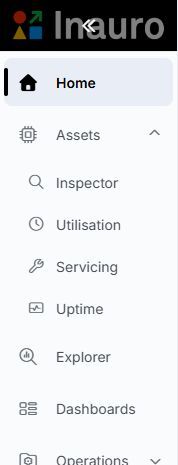
The left menu is expanded, with the Assets submenus visible.
Depending on your access, the menu can include Assets, Explorer, Dashboards, Operations, Reports, Groups, Geofences, Workflows and Settings. You can return to the home screen at any time by selecting Home.
Tips & troubleshooting
- Only icons are visible: Click the logo at the top left to show module names. Scroll the left menu if a module is below the visible area.
- The home screen looks different: Check which organisation and home view you are in. Ask your administrator about access if you still can’t see an expected module or view.