---
title: Installing a DigitalMatter G70 4G / G70 4G-BLE Wire Definition
description: Article on more technical information about the DM G70 4G or BLE versions.
---
[Skip to content](https://help.perspio.io/help/installing-a-digitalmatter-g70-4g-/-g70-4g-ble-complex-install#main-content)
English
Show submenu for translations

Open main navigation
Close main navigation
- English
Show submenu for translations
- [Contact us](mailto:servicedesk@perspio.io)
[Contact us](mailto:servicedesk@perspio.io)
How can we help you?
- There are no suggestions because the search field is empty.
1. [Perspio Help Centre](https://help.perspio.io/help?hsLang=en)
2. [Devices](https://help.perspio.io/help/devices?hsLang=en)
3. [Installation Guides](https://help.perspio.io/help/devices?hsLang=en#installation-guides)
# Installing a DigitalMatter G70 4G / G70 4G-BLE Wire Definition
## Article on more technical information about the DM G70 4G or BLE versions.
### Introduction
- The G70 comes with a 1m long, 10 wire harness.
- 15 mm is pre stripped on the loose ends of the input (red), ground (black) and the ignition (white) wires.
- The wires are 24 AWG
### Wire Definition
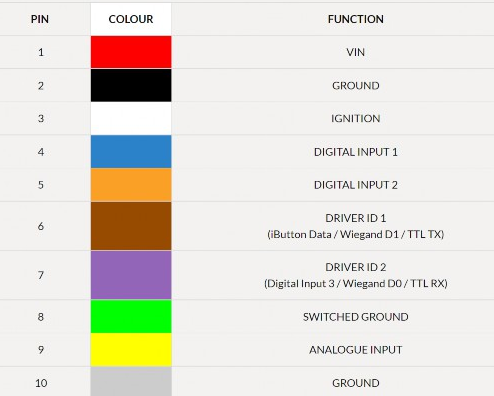
### **Driver ID Lines**
Driver ID 1 and Driver ID 2 are used for various functions depending on configuration. Either:
1. Driver ID 1 can be used as the iButton Data Line, and Driver ID 2 (Purple) can be used as a 3rd Digital Input. This can be independently or simultaneously.
2. Driver ID 1 and 2 can be used to connect Wiegand Driver ID readers
### **Completed Job**
- Ensure that the install is completed, vehicle thereafter is left neat and tidy.
- Equipment to be fastened with cable ties, liquid nails, nails or any other suitable fastening solution, firmly to the chassis of the Vehicle.
### Checking Perspio for Asset Connectivity
Access Perspio, search for the serial number and ensure that the asset displays last communication date and time.
To do that, click on the **Eye Icon** under the search bar:

The Last Seen Pop Up will indicate the latest date and time the device communicated with Perspio. If it aligns with the time you finished the installation, that means the asset is up and running.
Keep an eye on trips and Events for alerts and possible installation faults.
- [Introduction](https://help.perspio.io/help/introduction?hsLang=en#main-content)
- [How to's](https://help.perspio.io/help/introduction?hsLang=en#how-tos)
- [Assets](https://help.perspio.io/help/assets?hsLang=en#main-content)
- [Asset Inspector](https://help.perspio.io/help/assets?hsLang=en#asset-inspector)
- [Utilisation Module](https://help.perspio.io/help/assets?hsLang=en#utilisation-module)
- [Configuration](https://help.perspio.io/help/assets?hsLang=en#configuration)
- [Events](https://help.perspio.io/help/assets?hsLang=en#events)
- [Servicing](https://help.perspio.io/help/assets?hsLang=en#servicing)
- [Asset Configuration](https://help.perspio.io/help/assets?hsLang=en#asset-configuration)
- [Device Configuration](https://help.perspio.io/help/assets?hsLang=en#device-configuration)
- [Explorer](https://help.perspio.io/help/explorer?hsLang=en)
- [Dashboards](https://help.perspio.io/help/dashboards?hsLang=en#main-content)
- [Configuration](https://help.perspio.io/help/dashboards?hsLang=en#configuration)
- [Reports](https://help.perspio.io/help/reports?hsLang=en#main-content)
- [Available Reports](https://help.perspio.io/help/reports?hsLang=en#available-reports)
- [Groups](https://help.perspio.io/help/groups?hsLang=en#main-content)
- [Security Groups](https://help.perspio.io/help/groups?hsLang=en#security-groups)
- [Asset Groups](https://help.perspio.io/help/groups?hsLang=en#asset-groups)
- [Geofences](https://help.perspio.io/help/geofences?hsLang=en)
- [Workflows](https://help.perspio.io/help/workflows?hsLang=en)
- [Administration](https://help.perspio.io/help/administration?hsLang=en#main-content)
- [Settings Module](https://help.perspio.io/help/administration?hsLang=en#settings-module)
- [Admin Panel](https://help.perspio.io/help/administration?hsLang=en#admin-panel)
- [Devices](https://help.perspio.io/help/devices?hsLang=en#main-content)
- [Troubleshooting](https://help.perspio.io/help/devices?hsLang=en#troubleshooting)
- [Installation Guides](https://help.perspio.io/help/devices?hsLang=en#installation-guides)
[](https://perspio.io)
2/50 Yeo St, Neutral Bay NSW 2089
[mailto:servicedesk@perspio.io](mailto:servicedesk@perspio.io)
Copyright © 2026 Inauro