
Overview
The Share Asset feature in Asset Inspector lets you share an asset with someone who does not have a Perspio login.
This is useful when you need to send asset information to:
-
Customers
-
Drivers
-
Technicians
-
Contractors
-
Suppliers
-
Other external stakeholders
Why this feature is important
This feature allows you to share asset details quickly without:
-
Creating a user account
-
Taking screenshots
-
Manually rewriting asset information
It also gives recipients a consistent shared asset view.
Sharing methods
SMS
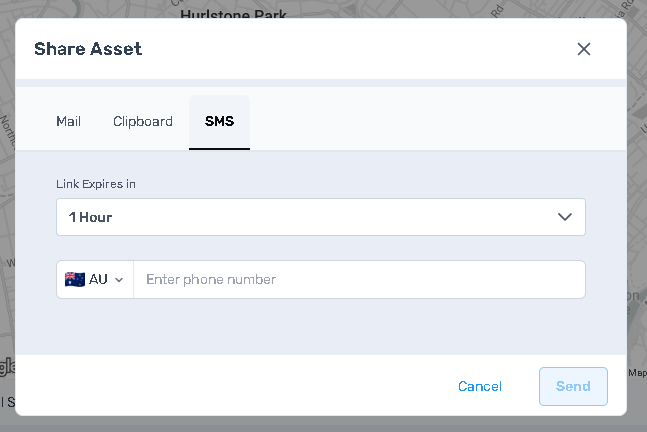
SMS sends the asset link directly by text message from Perspio.
Use this when the recipient is mobile-first or needs the information quickly.
Mail sends the asset link directly by email from Perspio.
Use this for formal or business communication.
Clipboard
Clipboard generates the asset link for you to copy and use yourself.
Use this when you want to:
-
Paste the link into a browser
-
Send it in your own email
-
Send it in Teams, Slack, or another tool
-
Manually send it by SMS
Before you start
Make sure:
-
You have access to Inspector
-
You open the correct asset
-
You have the correct email address or phone number if using Mail or SMS
How to share an asset
Step 1 – Open Inspector
Go to Inspector from the left menu.

Step 2 – Open the asset
Open the asset you want to share.

Step 3 – Select Share Asset
Use the Share Asset action from the asset record.

Step 4 – Choose the sharing method
Select one of the following:
-
SMS
-
Mail
-
Clipboard

Share by SMS
-
Select SMS
- Select link expiration time
-
Enter or confirm the phone number
-
Select Generate if prompted
-
Select Send
Result: Perspio sends the asset link by SMS.
Share by Mail
-
Select Mail
- Select link expiration time
-
Enter or confirm the email address
-
Select Send
Result: Perspio sends the asset link by email.

Share by Clipboard
-
Select Clipboard
- Select link expiration time
-
Select Generate
-
Copy the generated link
-
Use the link however you want
Result: Perspio creates the link but does not send it for you.
What the recipient receives
All methods provide the same shared asset view.
The only difference is how the link is delivered:
-
SMS = sent by text message
-
Mail = sent by email
-
Clipboard = generated for manual use

Best practice
-
Use SMS for quick field communication
-
Use Mail for formal communication
-
Use Clipboard when you want full control over how the link is shared
Always confirm you are sharing the correct asset before sending.
Troubleshooting
I used Clipboard but nothing was sent
That is expected. Clipboard only generates the link.
The recipient did not receive the share
Check:
-
The email address or phone number
-
That you selected Send
-
That you shared the correct asset