---
title: How to Create and Set a Sharing Profile for an Asset
description: This article explains how to create and apply the Sharing Profile for an Asset in Perspio.
---

[Skip to content](https://help.perspio.io/help/how-to-create-and-set-a-sharing-profile-for-an-asset#main-content)

English

Show submenu for translations

![Screenshot_3-4-2025_17232_](https://help.perspio.io/hs-fs/hubfs/Screenshot_3-4-2025_17232_.jpeg?width=200&height=53&name=Screenshot_3-4-2025_17232_.jpeg)

Open main navigation

Close main navigation

- English
  
  Show submenu for translations
- [Contact us](mailto:servicedesk@perspio.io)

[Contact us](mailto:servicedesk@perspio.io)

 How can we help you?

- There are no suggestions because the search field is empty.

1. [Perspio Help Centre](https://help.perspio.io/help?hsLang=en)
2. [Administration](https://help.perspio.io/help/administration?hsLang=en)

# How to Create and Set a Sharing Profile for an Asset

## This article explains how to create and apply the Sharing Profile for an Asset in Perspio.

Sharing Profiles determine which Properties will be shared when sharing an asset to another tenant. This is useful to control the level of access when sharing an asset to a different tenant, also enabling to share the information to an already existing asset.

Important to note that a target asset needs to exist in the target tenant. View this [guide](https://8189031.hs-sites.com/help/how-to-create-an-asset?hsLang=en) on how to create an Asset.

Without a profile, all asset information is displayed on the shared asset.

#### **Creating a Sharing Profile**

### 1. Click on Admin

![Click on Admin](https://images.tango.us/workflows/e3aa91aa-75de-414c-8004-f95864fabc3b/steps/d13c3ac9-95e4-478d-bc8d-673d0b9a5076/3a6dd0c8-9685-4b98-be70-e34f5f54cc13.png?fm=png&crop=focalpoint&fit=crop&fp-x=0.0957&fp-y=0.6897&fp-z=2.4307&w=1200&border=2%2CF4F2F7&border-radius=8%2C8%2C8%2C8&border-radius-inner=8%2C8%2C8%2C8&mark-x=117&mark-y=320&m64=aHR0cHM6Ly9pbWFnZXMudGFuZ28udXMvc3RhdGljL2JsYW5rLnBuZz9tYXNrPWNvcm5lcnMmYm9yZGVyPTQlMkNGRjc0NDImdz0zMjUmaD0xMTEmZml0PWNyb3AmY29ybmVyLXJhZGl1cz0xMA%3D%3D)


### 2. Click on Profiles

![Click on Profiles](https://images.tango.us/workflows/e3aa91aa-75de-414c-8004-f95864fabc3b/steps/9e2f3d1f-3377-4129-ba24-cd04b4dcb390/477cdc95-aafd-49d7-b943-43804c69b692.png?fm=png&crop=focalpoint&fit=crop&fp-x=0.1019&fp-y=0.4109&fp-z=2.3234&w=1200&border=2%2CF4F2F7&border-radius=8%2C8%2C8%2C8&border-radius-inner=8%2C8%2C8%2C8&mark-x=102&mark-y=324&m64=aHR0cHM6Ly9pbWFnZXMudGFuZ28udXMvc3RhdGljL2JsYW5rLnBuZz9tYXNrPWNvcm5lcnMmYm9yZGVyPTQlMkNGRjc0NDImdz0zNjQmaD0xMDImZml0PWNyb3AmY29ybmVyLXJhZGl1cz0xMA%3D%3D)


### 3. Click on Asset Sharing

![Click on Asset Sharing](https://images.tango.us/workflows/e3aa91aa-75de-414c-8004-f95864fabc3b/steps/0b1409b9-b69e-4e25-a518-c64b10443c16/57fb17fa-7054-499c-a8bc-aaf6e6f1e992.png?fm=png&crop=focalpoint&fit=crop&fp-x=0.4227&fp-y=0.3101&fp-z=1.5917&w=1200&border=2%2CF4F2F7&border-radius=8%2C8%2C8%2C8&border-radius-inner=8%2C8%2C8%2C8&mark-x=418&mark-y=85&m64=aHR0cHM6Ly9pbWFnZXMudGFuZ28udXMvc3RhdGljL2JsYW5rLnBuZz9tYXNrPWNvcm5lcnMmYm9yZGVyPTQlMkNGRjc0NDImdz0xNjQmaD03OSZmaXQ9Y3JvcCZjb3JuZXItcmFkaXVzPTEw)


### 4. Click on Add Profile

![Click on Add Profile](https://images.tango.us/workflows/e3aa91aa-75de-414c-8004-f95864fabc3b/steps/3bfa44df-df15-4e23-b4ec-69298b19d19b/994f12de-95dd-426a-87e8-6c009d15cb1e.png?fm=png&crop=focalpoint&fit=crop&fp-x=0.3257&fp-y=0.3018&fp-z=1.6548&w=1200&border=2%2CF4F2F7&border-radius=8%2C8%2C8%2C8&border-radius-inner=8%2C8%2C8%2C8&mark-x=320&mark-y=199&m64=aHR0cHM6Ly9pbWFnZXMudGFuZ28udXMvc3RhdGljL2JsYW5rLnBuZz9tYXNrPWNvcm5lcnMmYm9yZGVyPTQlMkNGRjc0NDImdz0xNTImaD02MSZmaXQ9Y3JvcCZjb3JuZXItcmFkaXVzPTEw)


### 5. Fill Name, Description and click on Next

![Fill Name, Description and click on Next](https://images.tango.us/workflows/e3aa91aa-75de-414c-8004-f95864fabc3b/steps/090fb464-5209-4dd3-be15-3f96923b9cf6/18cfd037-338c-41c3-8294-56138aa95fe5.png?fm=png&crop=focalpoint&fit=crop&fp-x=0.5000&fp-y=0.5000&w=1200&border=2%2CF4F2F7&border-radius=8%2C8%2C8%2C8&border-radius-inner=8%2C8%2C8%2C8&mark-x=676&mark-y=377&m64=aHR0cHM6Ly9pbWFnZXMudGFuZ28udXMvc3RhdGljL2JsYW5rLnBuZz9tYXNrPWNvcm5lcnMmYm9yZGVyPTMlMkNGRjc0NDImdz01OCZoPTM3JmZpdD1jcm9wJmNvcm5lci1yYWRpdXM9MTA%3D)


### 6. Select one or more properties to be shared

![Select one or more properties to be shared:](https://images.tango.us/workflows/e3aa91aa-75de-414c-8004-f95864fabc3b/steps/8c99ae0c-f9e4-45e4-bd27-aeea8191316b/8bb306ea-cad1-41a4-bfd1-edc39121ace5.png?fm=png&crop=focalpoint&fit=crop&fp-x=0.5000&fp-y=0.5000&w=1200&border=2%2CF4F2F7&border-radius=8%2C8%2C8%2C8&border-radius-inner=8%2C8%2C8%2C8&mark-x=479&mark-y=191&m64=aHR0cHM6Ly9pbWFnZXMudGFuZ28udXMvc3RhdGljL2JsYW5rLnBuZz9tYXNrPWNvcm5lcnMmYm9yZGVyPTMlMkNGRjc0NDImdz0yNSZoPTI1JmZpdD1jcm9wJmNvcm5lci1yYWRpdXM9MTA%3D)


### 7. Select one or more properties to be shared and click Create

![Select one or more properties to be shared and click Create](https://images.tango.us/workflows/e3aa91aa-75de-414c-8004-f95864fabc3b/steps/ae578718-c4d3-4044-bb84-aa82e1a85d36/00756cd3-c687-4f0b-8d4a-eb89879e222a.png?fm=png&crop=focalpoint&fit=crop&fp-x=0.5000&fp-y=0.5000&w=1200&border=2%2CF4F2F7&border-radius=8%2C8%2C8%2C8&border-radius-inner=8%2C8%2C8%2C8&mark-x=661&mark-y=658&m64=aHR0cHM6Ly9pbWFnZXMudGFuZ28udXMvc3RhdGljL2JsYW5rLnBuZz9tYXNrPWNvcm5lcnMmYm9yZGVyPTMlMkNGRjc0NDImdz02OSZoPTM3JmZpdD1jcm9wJmNvcm5lci1yYWRpdXM9MTA%3D)


### 8. Finished creating a Sharing Profile.

![Finished creating a Sharing Profile.](https://images.tango.us/workflows/e3aa91aa-75de-414c-8004-f95864fabc3b/steps/f492f3bf-dbcb-43c4-b272-8493509d189e/21d7e7fe-3ab9-42a9-b995-8d2744fca89d.png?fm=png&crop=focalpoint&fit=crop&fp-x=0.4014&fp-y=0.3522&fp-z=1.3640&w=1200&border=2%2CF4F2F7&border-radius=8%2C8%2C8%2C8&border-radius-inner=8%2C8%2C8%2C8&mark-x=246&mark-y=167&m64=aHR0cHM6Ly9pbWFnZXMudGFuZ28udXMvc3RhdGljL2JsYW5rLnBuZz9tYXNrPWNvcm5lcnMmYm9yZGVyPTQlMkNGRjc0NDImdz03MDkmaD0zODYmZml0PWNyb3AmY29ybmVyLXJhZGl1cz0xMA%3D%3D)


#### **Applying the Profile to an Asset**

The Profile needs to be applied when sharing the asset to ensure only the properties selected will be shared.

### 9. Choose an asset and click on Configuration

![Choose an asset and click on Configuration](https://images.tango.us/workflows/e3aa91aa-75de-414c-8004-f95864fabc3b/steps/6d3e60da-372e-4bdd-a958-e63f5357e36d/7b9bbb7b-1f9a-4f1f-b8f5-64da537275c7.png?fm=png&crop=focalpoint&fit=crop&fp-x=0.1019&fp-y=0.6289&fp-z=2.3234&w=1200&border=2%2CF4F2F7&border-radius=8%2C8%2C8%2C8&border-radius-inner=8%2C8%2C8%2C8&mark-x=102&mark-y=324&m64=aHR0cHM6Ly9pbWFnZXMudGFuZ28udXMvc3RhdGljL2JsYW5rLnBuZz9tYXNrPWNvcm5lcnMmYm9yZGVyPTQlMkNGRjc0NDImdz0zNjQmaD0xMDImZml0PWNyb3AmY29ybmVyLXJhZGl1cz0xMA%3D%3D)


### 10. Click on Sharing

![Click on Sharing](https://images.tango.us/workflows/e3aa91aa-75de-414c-8004-f95864fabc3b/steps/1f3e16ad-4008-40e2-991e-fac3c085401c/ad79cd16-21f9-49ba-ba6d-c8e57753e2bd.png?fm=png&crop=focalpoint&fit=crop&fp-x=0.2513&fp-y=0.5487&fp-z=2.3234&w=1200&border=2%2CF4F2F7&border-radius=8%2C8%2C8%2C8&border-radius-inner=8%2C8%2C8%2C8&mark-x=418&mark-y=325&m64=aHR0cHM6Ly9pbWFnZXMudGFuZ28udXMvc3RhdGljL2JsYW5rLnBuZz9tYXNrPWNvcm5lcnMmYm9yZGVyPTQlMkNGRjc0NDImdz0zNjQmaD0xMDAmZml0PWNyb3AmY29ybmVyLXJhZGl1cz0xMA%3D%3D)


### 11. Click on Edit

![Click on Edit](https://images.tango.us/workflows/e3aa91aa-75de-414c-8004-f95864fabc3b/steps/7d03637f-c84a-4e8b-a447-3b7bf040d3fd/68e75b79-ec97-4d8d-9ff6-3e2bdf2db428.png?fm=png&crop=focalpoint&fit=crop&fp-x=0.5000&fp-y=0.5000&w=1200&border=2%2CF4F2F7&border-radius=8%2C8%2C8%2C8&border-radius-inner=8%2C8%2C8%2C8&mark-x=1046&mark-y=275&m64=aHR0cHM6Ly9pbWFnZXMudGFuZ28udXMvc3RhdGljL2JsYW5rLnBuZz9tYXNrPWNvcm5lcnMmYm9yZGVyPTMlMkNGRjc0NDImdz01NSZoPTMxJmZpdD1jcm9wJmNvcm5lci1yYWRpdXM9MTA%3D)


### 12. Select Profile and Click on Save

Fill Target Tenant ID, Target Asset ID and Click Save.

![Click on Save](https://images.tango.us/workflows/e3aa91aa-75de-414c-8004-f95864fabc3b/steps/555654a7-fb67-4d9d-aaf5-fa1d66a0a8f5/a24c9509-a880-4246-882c-7cb9a4024e9b.png?fm=png&crop=focalpoint&fit=crop&fp-x=0.5000&fp-y=0.5000&w=1200&border=2%2CF4F2F7&border-radius=8%2C8%2C8%2C8&border-radius-inner=8%2C8%2C8%2C8&mark-x=1042&mark-y=275&m64=aHR0cHM6Ly9pbWFnZXMudGFuZ28udXMvc3RhdGljL2JsYW5rLnBuZz9tYXNrPWNvcm5lcnMmYm9yZGVyPTMlMkNGRjc0NDImdz01OSZoPTMxJmZpdD1jcm9wJmNvcm5lci1yYWRpdXM9MTA%3D)


This icon means that the Sharing is working, and the information is being synced.

![](https://help.perspio.io/hs-fs/hubfs/image-png-May-20-2025-06-43-47-4381-AM.png?width=93&height=50&name=image-png-May-20-2025-06-43-47-4381-AM.png)

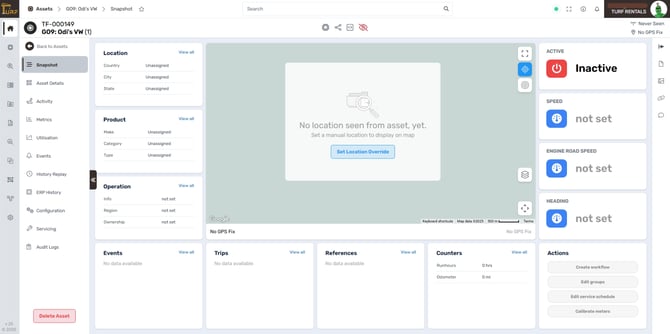
To confirm, access the target tenant:
![](https://help.perspio.io/hs-fs/hubfs/image-png-May-20-2025-06-46-12-1940-AM.png?width=670&height=334&name=image-png-May-20-2025-06-46-12-1940-AM.png)


- [Introduction](https://help.perspio.io/help/introduction?hsLang=en#main-content)


    - [How to's](https://help.perspio.io/help/introduction?hsLang=en#how-tos)
- [Assets](https://help.perspio.io/help/assets?hsLang=en#main-content)


    - [Asset Inspector](https://help.perspio.io/help/assets?hsLang=en#asset-inspector)
    - [Utilisation Module](https://help.perspio.io/help/assets?hsLang=en#utilisation-module)
    - [Configuration](https://help.perspio.io/help/assets?hsLang=en#configuration)
    - [Events](https://help.perspio.io/help/assets?hsLang=en#events)
    - [Servicing](https://help.perspio.io/help/assets?hsLang=en#servicing)
    - [Asset Configuration](https://help.perspio.io/help/assets?hsLang=en#asset-configuration)
    - [Device Configuration](https://help.perspio.io/help/assets?hsLang=en#device-configuration)
- [Explorer](https://help.perspio.io/help/explorer?hsLang=en)
- [Dashboards](https://help.perspio.io/help/dashboards?hsLang=en#main-content)


    - [Configuration](https://help.perspio.io/help/dashboards?hsLang=en#configuration)
- [Reports](https://help.perspio.io/help/reports?hsLang=en#main-content)


    - [Available Reports](https://help.perspio.io/help/reports?hsLang=en#available-reports)
- [Groups](https://help.perspio.io/help/groups?hsLang=en#main-content)


    - [Security Groups](https://help.perspio.io/help/groups?hsLang=en#security-groups)
    - [Asset Groups](https://help.perspio.io/help/groups?hsLang=en#asset-groups)
- [Geofences](https://help.perspio.io/help/geofences?hsLang=en)
- [Workflows](https://help.perspio.io/help/workflows?hsLang=en)
- [Administration](https://help.perspio.io/help/administration?hsLang=en#main-content)


    - [Settings Module](https://help.perspio.io/help/administration?hsLang=en#settings-module)
    - [Admin Panel](https://help.perspio.io/help/administration?hsLang=en#admin-panel)
- [Devices](https://help.perspio.io/help/devices?hsLang=en#main-content)


    - [Troubleshooting](https://help.perspio.io/help/devices?hsLang=en#troubleshooting)
    - [Installation Guides](https://help.perspio.io/help/devices?hsLang=en#installation-guides)

[![](https://help.perspio.io/hs-fs/hubfs/Perspio%20Logo%20%E2%80%93%20Colour%20White%20%E2%80%93%20large%20%20RGB.png?width=786&height=177&name=Perspio%20Logo%20%E2%80%93%20Colour%20White%20%E2%80%93%20large%20%20RGB.png)](https://perspio.io)

2/50 Yeo St, Neutral Bay NSW 2089

[mailto:servicedesk@perspio.io](mailto:servicedesk@perspio.io) <https://www.facebook.com/InauroAus/> <https://www.inauro.io/>

Copyright © 2026 Inauro