---
title: How to Add Assets in Perspio?
description: Perspio assets a categorized in Telemetry Asset and Non-telemetry assets:
---
[Skip to content](https://help.perspio.io/help/how-to-add-assets-in-perspio#main-content)
English
Show submenu for translations

Open main navigation
Close main navigation
- English
Show submenu for translations
- [Contact us](mailto:servicedesk@perspio.io)
[Contact us](mailto:servicedesk@perspio.io)
How can we help you?
- There are no suggestions because the search field is empty.
1. [Perspio Help Centre](https://help.perspio.io/help?hsLang=en)
2. [Assets](https://help.perspio.io/help/assets?hsLang=en)
# How to Add Assets in Perspio?
## Perspio assets a categorized in Telemetry Asset and Non-telemetry assets:
**Telemetry Assets:** Assets that are fitted with devices/trackers that regularly send updates to Perspio.
**Non-telemetry Asset:** Assets that doesn’t have a device/tracker connected to them.
Assets that come from factory enabled telemetry can be connected to Perspio through connectors. The connectors available are in this [list](https://developers.perspio.io/docs/platforms-oems). If your asset does not have telemetry from factory, we can provide devices according to each use case.
It not currently possible for the end user to connect telemetry assets to Perspio. To do that, please reach us out in **support@inauro.io**.
To create a new **Non-telemetry** in Perspio, please follow the steps below:
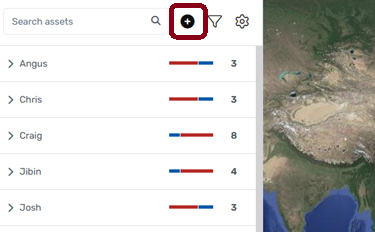
### 1. Click on Add Asset
Click on the **'+'** button, located in the top-left corner, by the Search Bar.
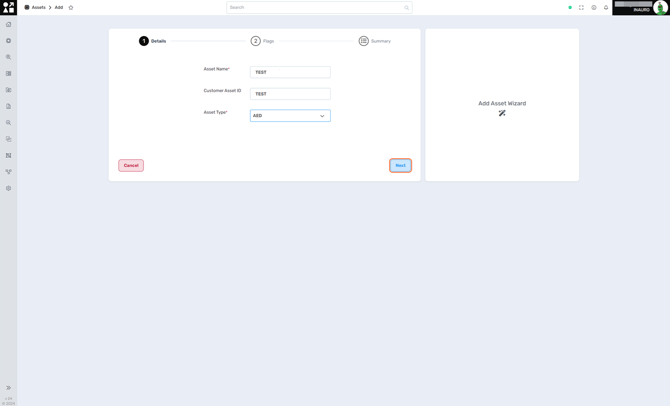
### 2. Fill all asset details and click Next
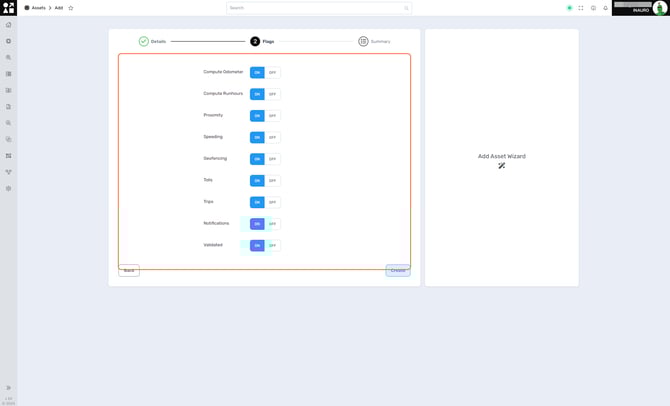
### 3. Ensure the necessary Service Flags are turned on and click on Create
Service Flags are important to ensure correct data processing for the assets in Perspio.
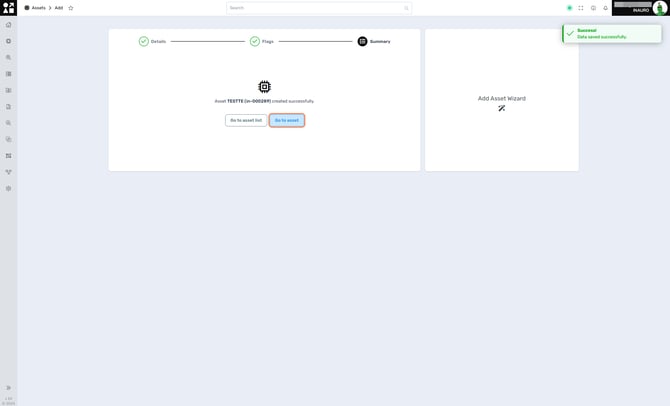
### 4. Click on Go to asset to view the asset you have just created
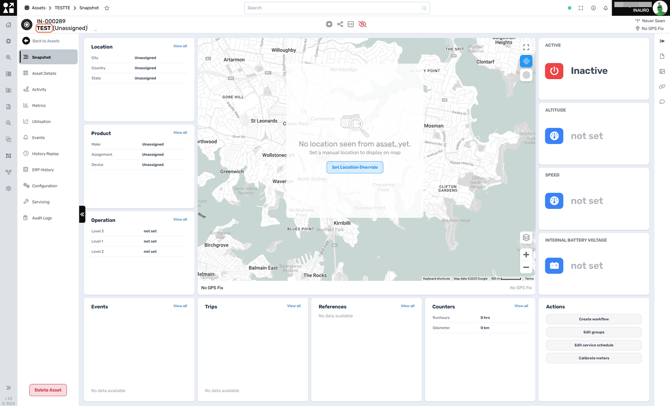
### 5. View the Asset Snapshot of the Non-telemetry asset you have just created
- [Introduction](https://help.perspio.io/help/introduction?hsLang=en#main-content)
- [How to's](https://help.perspio.io/help/introduction?hsLang=en#how-tos)
- [Assets](https://help.perspio.io/help/assets?hsLang=en#main-content)
- [Asset Inspector](https://help.perspio.io/help/assets?hsLang=en#asset-inspector)
- [Utilisation Module](https://help.perspio.io/help/assets?hsLang=en#utilisation-module)
- [Configuration](https://help.perspio.io/help/assets?hsLang=en#configuration)
- [Events](https://help.perspio.io/help/assets?hsLang=en#events)
- [Servicing](https://help.perspio.io/help/assets?hsLang=en#servicing)
- [Asset Configuration](https://help.perspio.io/help/assets?hsLang=en#asset-configuration)
- [Device Configuration](https://help.perspio.io/help/assets?hsLang=en#device-configuration)
- [Explorer](https://help.perspio.io/help/explorer?hsLang=en)
- [Dashboards](https://help.perspio.io/help/dashboards?hsLang=en#main-content)
- [Configuration](https://help.perspio.io/help/dashboards?hsLang=en#configuration)
- [Reports](https://help.perspio.io/help/reports?hsLang=en#main-content)
- [Available Reports](https://help.perspio.io/help/reports?hsLang=en#available-reports)
- [Groups](https://help.perspio.io/help/groups?hsLang=en#main-content)
- [Security Groups](https://help.perspio.io/help/groups?hsLang=en#security-groups)
- [Asset Groups](https://help.perspio.io/help/groups?hsLang=en#asset-groups)
- [Geofences](https://help.perspio.io/help/geofences?hsLang=en)
- [Workflows](https://help.perspio.io/help/workflows?hsLang=en)
- [Administration](https://help.perspio.io/help/administration?hsLang=en#main-content)
- [Settings Module](https://help.perspio.io/help/administration?hsLang=en#settings-module)
- [Admin Panel](https://help.perspio.io/help/administration?hsLang=en#admin-panel)
- [Devices](https://help.perspio.io/help/devices?hsLang=en#main-content)
- [Troubleshooting](https://help.perspio.io/help/devices?hsLang=en#troubleshooting)
- [Installation Guides](https://help.perspio.io/help/devices?hsLang=en#installation-guides)
[](https://perspio.io)
2/50 Yeo St, Neutral Bay NSW 2089
[mailto:servicedesk@perspio.io](mailto:servicedesk@perspio.io)
Copyright © 2026 Inauro