---
title: Explorer Module - Overview
description: Use Explorer to analyse data from devices connected to assets and investigate telemetry, locations, and conditions.
---
[Skip to content](https://help.perspio.io/help/explorer-module-overview#main-content)
English
Show submenu for translations

Open main navigation
Close main navigation
- English
Show submenu for translations
- [Contact us](mailto:servicedesk@perspio.io)
[Contact us](mailto:servicedesk@perspio.io)
How can we help you?
- There are no suggestions because the search field is empty.
1. [Perspio Help Centre](https://help.perspio.io/help?hsLang=en)
2. [Explorer](https://help.perspio.io/help/explorer?hsLang=en)
# Explorer Module - Overview
## Learn what the Explorer module in Perspio is used for and why it matters. This overview explains Proximity Search, Assets, Devices, and Conditions, and how Explorer helps teams analyse telemetry from devices connected to assets for troubleshooting, filtering, and workflow design.
#### Overview
The **Explorer** module in Perspio is used to **explore and analyse data from devices connected to assets**. It provides a central workspace for searching, filtering, and reviewing asset/device telemetry and conditions, helping users investigate operational issues, validate device behaviour, and find assets more quickly.
Explorer is important because it gives teams a practical way to:
- Inspect **live and historical data** from connected devices.
- Search for assets based on **location, telemetry, or conditions.**
- Troubleshoot data quality and device reporting issues.
- Create and reuse **conditions** for filtering and analysis.
- Support workflow design by understanding what data is available and how it behaves.
In short, **Explorer** is the module you use when you need to **interact with the underlying device and asset data**, not just view dashboards or alerts.
---
#### Why the Explorer module is important
### 1) Faster troubleshooting
When a workflow, alert, or report seems incorrect, Explorer helps you verify:
- whether the device is reporting
- what values were received
- when the values changed
- which assets are affected
### 2) Better workflow and condition design
Explorer helps you confirm the signals and values you want to use in:
- **Workflow Conditions**
- monitoring rules
- operational checks
This reduces false positives and improves accuracy when building alerts.
### 3) Operational visibility across assets and devices
Explorer makes it easier to:
- find assets near a location
- query telemetry values over time
- review data by asset or by device
- apply saved conditions to narrow results
### 4) Data validation for integrations and device onboarding
When a new device is installed or an integration is enabled, Explorer is often the best place to confirm:
- data is flowing
- telemetry fields are populated
- timestamps are current
- the device is mapped to the correct asset
---
#### Where to find Explorer
Explorer is available from the left-hand navigation menu.
From the main navigation:
1. Select the **Explorer** icon
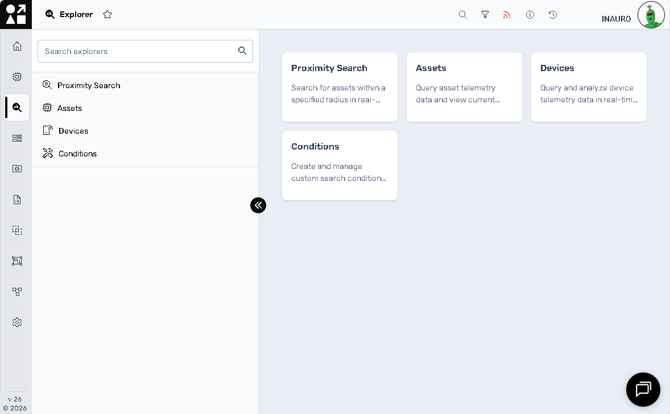
2. The Explorer landing page opens with:
- a **search panel** on the left
- a set of **Explorer cards** on the right
---
#### Explorer tools explained
#### 1) Proximity Search
**Card description (as shown):**
“Search for assets within a specified radius in real-time or during a selected time period”
### What it is used for
Proximity Search helps you find assets based on **location proximity**.
### Common use cases
- Find assets near a job site or customer location
- Check which assets were within range of a location during a time window
- Investigate asset presence during an incident or event
- Validate whether a tracked asset was near a known point
### Why this is useful
This is especially useful for operations, dispatch, service teams, and incident investigations where **geographic context** is important.
---
#### 2) Assets
**Card description (as shown):**
“Query asset telemetry data and view current state or historical metrics over time”
### What it is used for
The Assets Explorer is used to query and analyse telemetry data at the **asset level**.
### Common use cases
- View the current state of an asset (e.g., latest telemetry values)
- Review historical telemetry trends over time
- Investigate asset-specific issues (e.g., temperature, run hours, battery, status changes)
- Validate what data is available before building a workflow or report
### Why this is useful
Asset-level exploration is ideal when the user thinks in terms of **operational assets** (vehicles, equipment, refrigerated units, machines) rather than device IDs.
---
#### 3) Devices
**Card description (as shown):**
“Query and analyze device telemetry data in real-time or over historical time periods”
### What it is used for
The Devices Explorer is used to query and analyse telemetry at the **device level**.
### Common use cases
- Troubleshoot a specific hardware device that may be misreporting
- Validate device onboarding or installation
- Compare device telemetry behaviour across time
- Investigate whether an issue is caused by the device vs the asset record/configuration
### Why this is useful
This is particularly useful for technical teams when troubleshooting:
- connectivity
- telemetry format
- missing data
- timestamp gaps
- installation/configuration issues
It is also useful when one asset has multiple devices or when a device has recently been replaced.
---
#### 4) Conditions
**Card description (as shown):**
“Create and manage custom search conditions to filter and find assets”
### What it is used for
Conditions allows you to build and manage reusable **search logic** used to filter and find assets based on data values or states.
### Common use cases
- Create a condition to find assets with telemetry outside expected limits
- Build reusable filters for daily operations checks
- Support workflow design by testing condition logic first in Explorer
- Narrow large asset lists to only the assets that meet a rule
### Why this is useful
Conditions helps standardise how teams search for and analyse data. Instead of manually rebuilding the same filters, users can create consistent conditions and reuse them.
---
#### Typical Explorer workflow (recommended usage pattern)
A common way to use Explorer in daily operations:
1. Start in **Explorer**
2. Choose **Assets** or **Devices** depending on what you are investigating
3. Use **Conditions** to narrow the dataset
4. Use **Proximity Search** if location-based filtering is needed
5. Validate the values and timestamps
6. Use findings to:
- adjust a workflow condition
- confirm an integration issue
- identify affected assets
- support customer communication
---
#### Best practices
- Use **Assets Explorer** for operational investigations and business-facing analysis.
- Use **Devices Explorer** for technical troubleshooting and onboarding validation.
- Use **Conditions** to standardise repeat searches (avoid rebuilding the same filters).
- Use **Proximity Search** for location-based investigations and dispatch/service questions.
- When designing workflows, verify the signal behaviour in Explorer first (current values, update frequency, historical patterns).
---
#### Troubleshooting tips
### “I can’t find the asset/device data I expect”
- Confirm you are using the correct Explorer tool (Assets vs Devices)
- Check if the device is actively reporting
- Confirm the asset-device mapping is correct
- Review the time range (if the query supports historical filters)
### “My condition returns no results”
- Check that the selected field exists and is populated
- Confirm the operator and value are correct
- Test with a broader condition first, then narrow it
### “Proximity search returns no assets”
- Confirm the selected location and radius are correct
- Check the time period (real-time vs historical)
- Confirm assets in scope are location-enabled and reporting
- [Introduction](https://help.perspio.io/help/introduction?hsLang=en#main-content)
- [How to's](https://help.perspio.io/help/introduction?hsLang=en#how-tos)
- [Assets](https://help.perspio.io/help/assets?hsLang=en#main-content)
- [Asset Inspector](https://help.perspio.io/help/assets?hsLang=en#asset-inspector)
- [Utilisation Module](https://help.perspio.io/help/assets?hsLang=en#utilisation-module)
- [Configuration](https://help.perspio.io/help/assets?hsLang=en#configuration)
- [Events](https://help.perspio.io/help/assets?hsLang=en#events)
- [Servicing](https://help.perspio.io/help/assets?hsLang=en#servicing)
- [Asset Configuration](https://help.perspio.io/help/assets?hsLang=en#asset-configuration)
- [Device Configuration](https://help.perspio.io/help/assets?hsLang=en#device-configuration)
- [Explorer](https://help.perspio.io/help/explorer?hsLang=en)
- [Dashboards](https://help.perspio.io/help/dashboards?hsLang=en#main-content)
- [Configuration](https://help.perspio.io/help/dashboards?hsLang=en#configuration)
- [Reports](https://help.perspio.io/help/reports?hsLang=en#main-content)
- [Available Reports](https://help.perspio.io/help/reports?hsLang=en#available-reports)
- [Groups](https://help.perspio.io/help/groups?hsLang=en#main-content)
- [Security Groups](https://help.perspio.io/help/groups?hsLang=en#security-groups)
- [Asset Groups](https://help.perspio.io/help/groups?hsLang=en#asset-groups)
- [Geofences](https://help.perspio.io/help/geofences?hsLang=en)
- [Workflows](https://help.perspio.io/help/workflows?hsLang=en)
- [Administration](https://help.perspio.io/help/administration?hsLang=en#main-content)
- [Settings Module](https://help.perspio.io/help/administration?hsLang=en#settings-module)
- [Admin Panel](https://help.perspio.io/help/administration?hsLang=en#admin-panel)
- [Devices](https://help.perspio.io/help/devices?hsLang=en#main-content)
- [Troubleshooting](https://help.perspio.io/help/devices?hsLang=en#troubleshooting)
- [Installation Guides](https://help.perspio.io/help/devices?hsLang=en#installation-guides)
[](https://perspio.io)
2/50 Yeo St, Neutral Bay NSW 2089
[mailto:servicedesk@perspio.io](mailto:servicedesk@perspio.io)
Copyright © 2026 Inauro