---
title: Create and Edit Custom Profile for Counters
description: How to Create and Edit Custom Counter to be applied to Assets in Perspio.
---

[Skip to content](https://help.perspio.io/help/edit-asset-profile-colours#main-content)

English

Show submenu for translations

![Screenshot_3-4-2025_17232_](https://help.perspio.io/hs-fs/hubfs/Screenshot_3-4-2025_17232_.jpeg?width=200&height=53&name=Screenshot_3-4-2025_17232_.jpeg)

Open main navigation

Close main navigation

- English
  
  Show submenu for translations
- [Contact us](mailto:servicedesk@perspio.io)

[Contact us](mailto:servicedesk@perspio.io)

 How can we help you?

- There are no suggestions because the search field is empty.

1. [Perspio Help Centre](https://help.perspio.io/help?hsLang=en)
2. [Administration](https://help.perspio.io/help/administration?hsLang=en)

# Create and Edit Custom Profile for Counters

## How to Create and Edit Custom Counter to be applied to Assets in Perspio.

Creating Custom Counter is a useful way to measure time for actions that are not currently being measured. This allows for tracking, as an example, how much time the asset has been idle or how many times a door equipped with a sensor has stayed open, or how much time a fridge engine has worked.

Perspio allows up to 3 Custom Counters.

To enable the counters, performed the steps below.


### 1. Click on Admin

![Click on Admin](https://images.tango.us/workflows/5973fa45-bba0-49df-9a64-ce89f701085e/steps/46ce8e40-a917-40aa-b071-4673d568789c/6bb0e72f-2621-49e9-8ec3-23ed57ed3ed7.png?fm=png&crop=focalpoint&fit=crop&fp-x=0.0674&fp-y=0.4977&fp-z=2.6421&w=1200&border=2%2CF4F2F7&border-radius=8%2C8%2C8%2C8&border-radius-inner=8%2C8%2C8%2C8&mark-x=89&mark-y=322&m64=aHR0cHM6Ly9pbWFnZXMudGFuZ28udXMvc3RhdGljL2JsYW5rLnBuZz9tYXNrPWNvcm5lcnMmYm9yZGVyPTQlMkNGRjc0NDImdz0yNDkmaD04NSZmaXQ9Y3JvcCZjb3JuZXItcmFkaXVzPTEw)


### 2. Click on Profiles

![Click on ](https://images.tango.us/workflows/5973fa45-bba0-49df-9a64-ce89f701085e/steps/74849d48-b2c1-4929-80fc-142c2f7a5228/1945e629-41be-4f94-8f4f-c9800d5b6cd0.png?fm=png&crop=focalpoint&fit=crop&fp-x=0.2433&fp-y=0.3526&fp-z=2.0652&w=1200&border=2%2CF4F2F7&border-radius=8%2C8%2C8%2C8&border-radius-inner=8%2C8%2C8%2C8&mark-x=61&mark-y=327&m64=aHR0cHM6Ly9pbWFnZXMudGFuZ28udXMvc3RhdGljL2JsYW5rLnBuZz9tYXNrPWNvcm5lcnMmYm9yZGVyPTQlMkNGRjc0NDImdz00NTcmaD02NCZmaXQ9Y3JvcCZjb3JuZXItcmFkaXVzPTEw)


### 3. Click on Add Profile

![Click on Add Profile](https://images.tango.us/workflows/5973fa45-bba0-49df-9a64-ce89f701085e/steps/14da1558-a79b-4454-a3ad-d7c15c3f697f/09837156-00fd-4d0a-8934-bd94de1bce40.png?fm=png&crop=focalpoint&fit=crop&fp-x=0.2495&fp-y=0.1328&fp-z=2.8247&w=1200&border=2%2CF4F2F7&border-radius=8%2C8%2C8%2C8&border-radius-inner=8%2C8%2C8%2C8&mark-x=508&mark-y=236&m64=aHR0cHM6Ly9pbWFnZXMudGFuZ28udXMvc3RhdGljL2JsYW5rLnBuZz9tYXNrPWNvcm5lcnMmYm9yZGVyPTQlMkNGRjc0NDImdz0xODMmaD03NCZmaXQ9Y3JvcCZjb3JuZXItcmFkaXVzPTEw)


### 4. Type Counter Name and Description

Type the name and the description and click **Next **to continue. Make sure to type information that will make sense to anyone that reads it.

![Type "Vehicles"](https://images.tango.us/workflows/5973fa45-bba0-49df-9a64-ce89f701085e/steps/4e1c8a9d-ad41-4e69-a37c-72505082af78/b73eb8a5-210c-406d-ace5-c9849f1198e3.png?fm=png&crop=focalpoint&fit=crop&fp-x=0.4331&fp-y=0.2146&fp-z=2.3600&w=1200&border=2%2CF4F2F7&border-radius=8%2C8%2C8%2C8&border-radius-inner=8%2C8%2C8%2C8&mark-x=425&mark-y=334&m64=aHR0cHM6Ly9pbWFnZXMudGFuZ28udXMvc3RhdGljL2JsYW5rLnBuZz9tYXNrPWNvcm5lcnMmYm9yZGVyPTQlMkNGRjc0NDImdz0zNTAmaD02MCZmaXQ9Y3JvcCZjb3JuZXItcmFkaXVzPTEw)


### 5. The Counter is ready

![The Counter is ready](https://images.tango.us/workflows/5973fa45-bba0-49df-9a64-ce89f701085e/steps/df80e565-401b-4939-bac9-fd2b656df39d/595f7983-9451-488d-a092-6caf5a38fb87.png?fm=png&crop=focalpoint&fit=crop&fp-x=0.4558&fp-y=0.3556&fp-z=1.7564&w=1200&border=2%2CF4F2F7&border-radius=8%2C8%2C8%2C8&border-radius-inner=8%2C8%2C8%2C8&mark-x=484&mark-y=250&m64=aHR0cHM6Ly9pbWFnZXMudGFuZ28udXMvc3RhdGljL2JsYW5rLnBuZz9tYXNrPWNvcm5lcnMmYm9yZGVyPTQlMkNGRjc0NDImdz0xMzImaD00NiZmaXQ9Y3JvcCZjb3JuZXItcmFkaXVzPTEw)


Now that the counter has been created, you need to add it to an Asset.


To add a Custom Counter to an Asset, follow the steps below.


### 6. Click on Inspector

![Click on Inspector](https://images.tango.us/workflows/5973fa45-bba0-49df-9a64-ce89f701085e/steps/66529359-7c4e-4154-8792-03fb98753a8f/fee1d7e2-ffbf-4839-8a88-79057ae7a463.png?fm=png&crop=focalpoint&fit=crop&fp-x=0.0649&fp-y=0.1309&fp-z=2.6714&w=1200&border=2%2CF4F2F7&border-radius=8%2C8%2C8%2C8&border-radius-inner=8%2C8%2C8%2C8&mark-x=89&mark-y=212&m64=aHR0cHM6Ly9pbWFnZXMudGFuZ28udXMvc3RhdGljL2JsYW5rLnBuZz9tYXNrPWNvcm5lcnMmYm9yZGVyPTQlMkNGRjc0NDImdz0yMzgmaD04NiZmaXQ9Y3JvcCZjb3JuZXItcmFkaXVzPTEw)


### 7. Select an Asset

![Select an Asset](https://images.tango.us/workflows/5973fa45-bba0-49df-9a64-ce89f701085e/steps/cd7b886f-3b82-4f1c-9e21-9c381ae4fa01/566c91d6-e0c5-4748-90ad-c773a76c8ef1.png?fm=png&crop=focalpoint&fit=crop&fp-x=0.0852&fp-y=0.6081&fp-z=3.0387&w=1200&border=2%2CF4F2F7&border-radius=8%2C8%2C8%2C8&border-radius-inner=8%2C8%2C8%2C8&mark-x=258&mark-y=344&m64=aHR0cHM6Ly9pbWFnZXMudGFuZ28udXMvc3RhdGljL2JsYW5rLnBuZz9tYXNrPWNvcm5lcnMmYm9yZGVyPTQlMkNGRjc0NDImdz0xMDYmaD00MCZmaXQ9Y3JvcCZjb3JuZXItcmFkaXVzPTEw)


### 8. Click on Configuration

![Click on Configuration](https://images.tango.us/workflows/5973fa45-bba0-49df-9a64-ce89f701085e/steps/711c883b-3b75-411b-b363-ae94ce9233df/9642ef2b-3882-48f2-9d1d-69013c683dc5.png?fm=png&crop=focalpoint&fit=crop&fp-x=0.0718&fp-y=0.4566&fp-z=2.5518&w=1200&border=2%2CF4F2F7&border-radius=8%2C8%2C8%2C8&border-radius-inner=8%2C8%2C8%2C8&mark-x=79&mark-y=324&m64=aHR0cHM6Ly9pbWFnZXMudGFuZ28udXMvc3RhdGljL2JsYW5rLnBuZz9tYXNrPWNvcm5lcnMmYm9yZGVyPTQlMkNGRjc0NDImdz0yODEmaD03OSZmaXQ9Y3JvcCZjb3JuZXItcmFkaXVzPTEw)


### 9. Click on Calibration

![Click on Calibration](https://images.tango.us/workflows/5973fa45-bba0-49df-9a64-ce89f701085e/steps/15e9f6db-9ba7-428d-a2bb-f16353e0d0a0/e870dabc-676e-41b5-973c-83d757c3b8ad.png?fm=png&crop=focalpoint&fit=crop&fp-x=0.1586&fp-y=0.1891&fp-z=2.9720&w=1200&border=2%2CF4F2F7&border-radius=8%2C8%2C8%2C8&border-radius-inner=8%2C8%2C8%2C8&mark-x=501&mark-y=340&m64=aHR0cHM6Ly9pbWFnZXMudGFuZ28udXMvc3RhdGljL2JsYW5rLnBuZz9tYXNrPWNvcm5lcnMmYm9yZGVyPTQlMkNGRjc0NDImdz0xMzAmaD00OCZmaXQ9Y3JvcCZjb3JuZXItcmFkaXVzPTEw)


### 10. Click on Edit on Custom Counters

![Click on Edit on Custom Counters](https://images.tango.us/workflows/5973fa45-bba0-49df-9a64-ce89f701085e/steps/3112a8a2-162b-4496-9656-9d552c8fbe55/f3c400a5-b047-4b55-8be3-bb4bc1ca4f87.png?fm=png&crop=focalpoint&fit=crop&fp-x=0.5099&fp-y=0.5140&fp-z=1.0287&w=1200&border=2%2CF4F2F7&border-radius=8%2C8%2C8%2C8&border-radius-inner=8%2C8%2C8%2C8&mark-x=1088&mark-y=466&m64=aHR0cHM6Ly9pbWFnZXMudGFuZ28udXMvc3RhdGljL2JsYW5rLnBuZz9tYXNrPWNvcm5lcnMmYm9yZGVyPTQlMkNGRjc0NDImdz00MCZoPTIzJmZpdD1jcm9wJmNvcm5lci1yYWRpdXM9MTA%3D)


### 11. Select the Profile

The selected Profile will add the value to Custom Counter.

![Select the profile](https://images.tango.us/workflows/5973fa45-bba0-49df-9a64-ce89f701085e/steps/50d0f74a-7370-4df0-9f78-df403772a52d/a7ddaf70-967a-4b29-ad0b-76cb43125aae.png?fm=png&crop=focalpoint&fit=crop&fp-x=0.7138&fp-y=0.7123&fp-z=3.2850&w=1200&border=2%2CF4F2F7&border-radius=8%2C8%2C8%2C8&border-radius-inner=8%2C8%2C8%2C8&mark-x=556&mark-y=324&m64=aHR0cHM6Ly9pbWFnZXMudGFuZ28udXMvc3RhdGljL2JsYW5rLnBuZz9tYXNrPWNvcm5lcnMmYm9yZGVyPTQlMkNGRjc0NDImdz04NyZoPTgwJmZpdD1jcm9wJmNvcm5lci1yYWRpdXM9MTA%3D)


### 12. Click on Save

![Click on Save](https://images.tango.us/workflows/5973fa45-bba0-49df-9a64-ce89f701085e/steps/886d82ff-5973-48a7-af3e-0341b77b8b6a/8c7e4414-706d-49e0-abca-436d9283ed32.png?fm=png&crop=focalpoint&fit=crop&fp-x=0.9199&fp-y=0.6651&fp-z=3.0263&w=1200&border=2%2CF4F2F7&border-radius=8%2C8%2C8%2C8&border-radius-inner=8%2C8%2C8%2C8&mark-x=846&mark-y=330&m64=aHR0cHM6Ly9pbWFnZXMudGFuZ28udXMvc3RhdGljL2JsYW5rLnBuZz9tYXNrPWNvcm5lcnMmYm9yZGVyPTQlMkNGRjc0NDImdz0xMjYmaD02NyZmaXQ9Y3JvcCZjb3JuZXItcmFkaXVzPTEw)


Now that you have added the Profile to the Asset and the information is being carried to the Custom Counter selected, the values become available in the **Metrics Menu **inside the Asset.


### 13. Click on Metrics

![Click on Metrics](https://images.tango.us/workflows/5973fa45-bba0-49df-9a64-ce89f701085e/steps/e903ca68-3a5a-4937-b16f-245f0fcc4d79/b846258b-bc49-4703-96e7-c72a8cb6a3b3.png?fm=png&crop=focalpoint&fit=crop&fp-x=0.0718&fp-y=0.2588&fp-z=2.5518&w=1200&border=2%2CF4F2F7&border-radius=8%2C8%2C8%2C8&border-radius-inner=8%2C8%2C8%2C8&mark-x=79&mark-y=324&m64=aHR0cHM6Ly9pbWFnZXMudGFuZ28udXMvc3RhdGljL2JsYW5rLnBuZz9tYXNrPWNvcm5lcnMmYm9yZGVyPTQlMkNGRjc0NDImdz0yODEmaD03OSZmaXQ9Y3JvcCZjb3JuZXItcmFkaXVzPTEw)


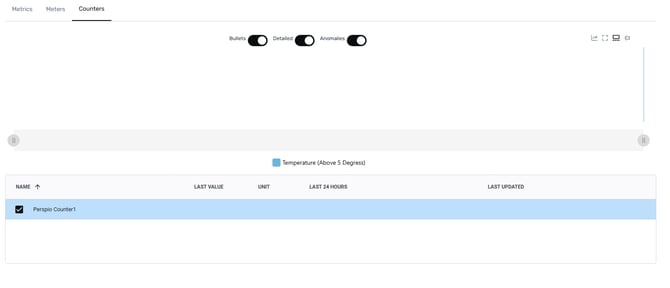
### 14. Click on Counters to view the newly created Custom Counter Profile
![](https://help.perspio.io/hs-fs/hubfs/image-png-Apr-04-2025-02-41-34-7185-AM.png?width=670&height=288&name=image-png-Apr-04-2025-02-41-34-7185-AM.png)

- [Introduction](https://help.perspio.io/help/introduction?hsLang=en#main-content)


    - [How to's](https://help.perspio.io/help/introduction?hsLang=en#how-tos)
- [Assets](https://help.perspio.io/help/assets?hsLang=en#main-content)


    - [Asset Inspector](https://help.perspio.io/help/assets?hsLang=en#asset-inspector)
    - [Utilisation Module](https://help.perspio.io/help/assets?hsLang=en#utilisation-module)
    - [Configuration](https://help.perspio.io/help/assets?hsLang=en#configuration)
    - [Events](https://help.perspio.io/help/assets?hsLang=en#events)
    - [Servicing](https://help.perspio.io/help/assets?hsLang=en#servicing)
    - [Asset Configuration](https://help.perspio.io/help/assets?hsLang=en#asset-configuration)
    - [Device Configuration](https://help.perspio.io/help/assets?hsLang=en#device-configuration)
- [Explorer](https://help.perspio.io/help/explorer?hsLang=en)
- [Dashboards](https://help.perspio.io/help/dashboards?hsLang=en#main-content)


    - [Configuration](https://help.perspio.io/help/dashboards?hsLang=en#configuration)
- [Reports](https://help.perspio.io/help/reports?hsLang=en#main-content)


    - [Available Reports](https://help.perspio.io/help/reports?hsLang=en#available-reports)
- [Groups](https://help.perspio.io/help/groups?hsLang=en#main-content)


    - [Security Groups](https://help.perspio.io/help/groups?hsLang=en#security-groups)
    - [Asset Groups](https://help.perspio.io/help/groups?hsLang=en#asset-groups)
- [Geofences](https://help.perspio.io/help/geofences?hsLang=en)
- [Workflows](https://help.perspio.io/help/workflows?hsLang=en)
- [Administration](https://help.perspio.io/help/administration?hsLang=en#main-content)


    - [Settings Module](https://help.perspio.io/help/administration?hsLang=en#settings-module)
    - [Admin Panel](https://help.perspio.io/help/administration?hsLang=en#admin-panel)
- [Devices](https://help.perspio.io/help/devices?hsLang=en#main-content)


    - [Troubleshooting](https://help.perspio.io/help/devices?hsLang=en#troubleshooting)
    - [Installation Guides](https://help.perspio.io/help/devices?hsLang=en#installation-guides)

[![](https://help.perspio.io/hs-fs/hubfs/Perspio%20Logo%20%E2%80%93%20Colour%20White%20%E2%80%93%20large%20%20RGB.png?width=786&height=177&name=Perspio%20Logo%20%E2%80%93%20Colour%20White%20%E2%80%93%20large%20%20RGB.png)](https://perspio.io)

2/50 Yeo St, Neutral Bay NSW 2089

[mailto:servicedesk@perspio.io](mailto:servicedesk@perspio.io) <https://www.facebook.com/InauroAus/> <https://www.inauro.io/>

Copyright © 2026 Inauro