---
title: Conditions Explorer
description: Create and reuse search conditions to quickly find assets that match specific data rules.
---
[Skip to content](https://help.perspio.io/help/conditions-explorer#main-content)
English
Show submenu for translations

Open main navigation
Close main navigation
- English
Show submenu for translations
- [Contact us](mailto:servicedesk@perspio.io)
[Contact us](mailto:servicedesk@perspio.io)
How can we help you?
- There are no suggestions because the search field is empty.
1. [Perspio Help Centre](https://help.perspio.io/help?hsLang=en)
2. [Explorer](https://help.perspio.io/help/explorer?hsLang=en)
# Conditions Explorer
## Learn how to use Conditions Explorer to build and reuse asset search rules. This guide explains selecting saved conditions, creating a new condition with signal, operator and value, refining results, exporting matches, and using condition-based searches to support investigations and workflow design.
#### Overview
The **Explorer → Conditions** tool lets you create and reuse **search conditions** to filter and find assets in Perspio. It is designed to help users define search logic using a **signal**, **operator**, and **value**, then return the assets that match that logic.
This tool is important because it allows teams to:
- Find assets based on consistent, repeatable rules
- Validate signal logic before using similar logic in workflows
- Narrow down large asset lists for operational reviews and investigations
- Create reusable saved conditions for common searches
Explorer → Conditions is the best tool to use when you want to answer questions such as:
- Which assets match a specific naming pattern?
- Which assets contain a particular value in a selected field?
- Which assets should be included in a repeated operational search?
---
#### Why Conditions is important
### Faster asset discovery
Conditions helps users locate the right assets without manually browsing or filtering large lists.
### Reusable search logic
Instead of rebuilding the same search each time, users can save and reuse commonly used conditions.
### Better workflow planning
Conditions is a useful validation tool before building workflow logic. It helps confirm that the chosen signal, operator, and value return the assets you expect.
### More consistent operational checks
When multiple users need to perform the same search, saved conditions help standardise the process.
---
#### Where to find it
1. Open **Explorer** from the left navigation.
2. Select **Conditions**.
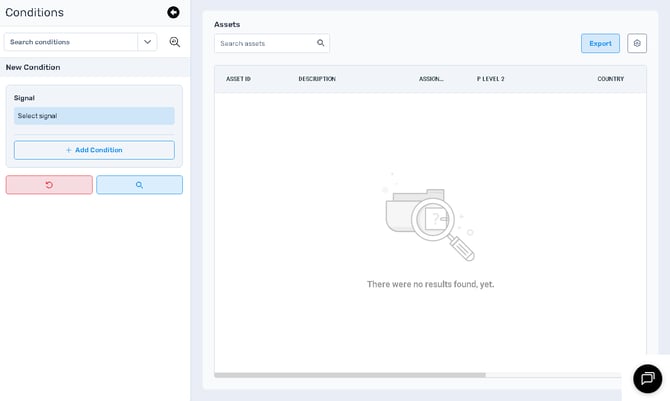
The Conditions screen is generally divided into two parts:
- a **left panel** for loading or creating conditions
- a **main panel** for viewing the matching assets
---
#### Screen layout and controls
#### Left panel: search and condition builder
### Search conditions
At the top of the panel is the **Search conditions** control.
This area is used to:
- search for existing saved conditions
- open a dropdown list of previously created conditions
- select a saved condition to load its results
**Usability**
- Use this when you already have a saved condition and want to run it again quickly.
- Saved conditions are useful for repeated searches, customer-specific views, or standard operational filters.
---
### New Condition
Below the saved-condition search is the **New Condition** builder.
This is where you define the search rule you want Perspio to apply.
The New Condition area is typically made up of three core fields:
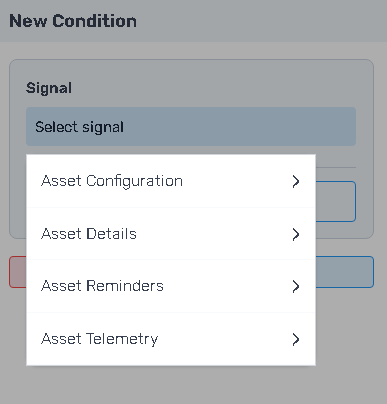
#### Signal
The **Signal** field defines *what data point* you want to search against.
Signals are usually grouped into categories such as:
- **Asset Details**
- **Asset Telemetry**
- **Asset Configuration**
- **Asset Reminders**
**Usability**
- Use **Asset Details** for metadata such as names, identifiers, locations, and descriptive fields.
- Use **Asset Telemetry** for live or device-reported values.
- Use **Asset Configuration** for configured asset settings.
- Use **Asset Reminders** for servicing or reminder-related fields where applicable.
---
#### Operator
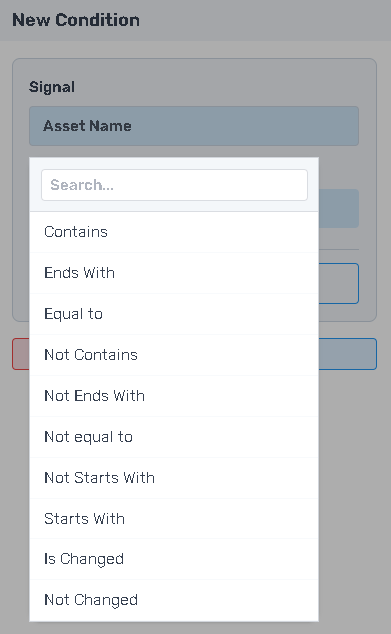
The **Operator** field defines *how* the selected signal should be compared to the value.
Common operators may include:
- Contains
- Equal to
- Not equal to
- Starts with
- Ends with
- Greater than / less than
- Other signal-appropriate comparisons depending on field type
**Usability**
- Use broader operators such as **Contains** when searching text patterns.
- Use more exact operators when you need precise matches.
- Choose the operator based on the type of field you are searching and the accuracy you need.
---
#### Value
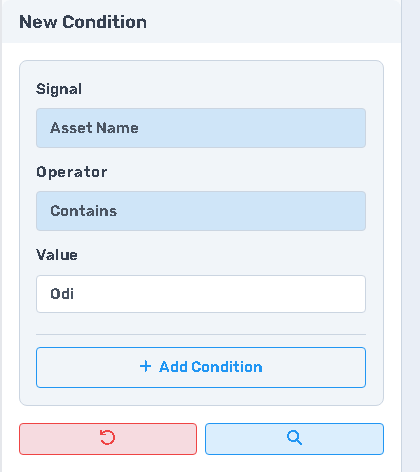
The **Value** field is where you enter the comparison value.
**Usability**
- Enter the text, number, or search value you want Perspio to compare against the selected signal.
- If the search returns too many results, refine the value or use a more precise operator.
- If the search returns no results, try a broader value first.
---
### Add Condition
The **Add Condition** button lets you add additional condition rows.
**Why this matters**
Adding more than one condition allows you to make your search more precise by combining multiple rules.
**Usability**
- Use multiple conditions when one condition is too broad.
- This is useful for narrowing search results for specific customers, regions, asset categories, or asset states.
---
### Query controls
At the bottom of the left panel are the main action buttons:
#### Reset
Clears the current condition setup.
Use this when:
- you want to start again from a blank search
- you need to remove all currently configured rules quickly
#### Search
Runs the condition and returns the matching asset results.
Use this after:
- selecting or changing a signal
- changing an operator
- entering or editing a value
- adding or removing conditions
---
#### Main panel: results and output
#### Search assets
At the top of the results area is a **Search assets** field.
This is used to filter the result set after the condition has already been run.
**Usability**
- Useful when the condition returns many assets and you need to quickly find one within the results.
- This does not replace the condition itself; it refines the visible result list.
---
#### Results table
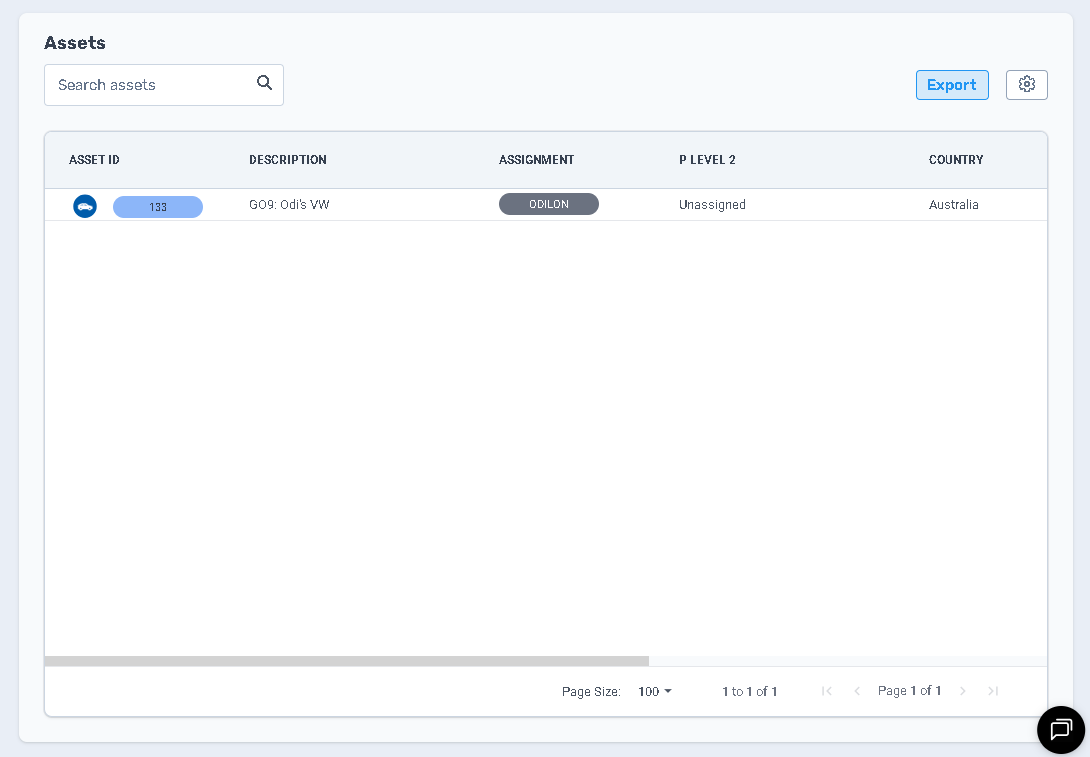
The main results table displays the assets that match the current condition.
Depending on tenant configuration, the results table may include columns such as:
- Asset ID
- Description
- Assignment
- Hierarchy / classification fields
- Country
- State
- Device count
- Other useful asset attributes
**Usability**
- Review the results to confirm the condition is returning the expected assets.
- Use the returned asset information to support further analysis in Explorer or workflow design.
- This table is the main place to validate whether the search rule is correct.
---
#### Export
The **Export** button allows you to export the current results.
This is useful when:
- Sharing the result set with another team
- Using the results for operational reviews
- Documenting an investigation
- Performing external analysis
---
#### How to build a condition
### Step 1 – Choose a signal
Select the field you want to search against.
### Step 2 – Choose an operator
Select how the signal should be evaluated.
### Step 3 – Enter a value
Enter the value Perspio should compare against the signal.
### Step 4 – Add more conditions if needed
Use **Add Condition** to refine the result set further.
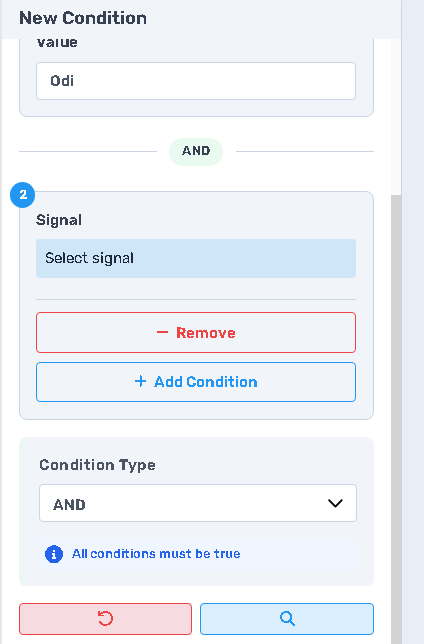
### Step 5 – Run the search
Select **Search** to return the matching assets.
### Step 6 – Review the results
Validate that the returned assets match the intended search logic.
**Note:** Add more conditions by clicking **Add Condition**. Choose the correct operator **AND / OR.**
---
#### Using saved conditions
Saved conditions are useful when the same search needs to be run regularly.
Common examples include:
- Customer-specific asset searches
- Branch or location-based asset groupings
- Naming convention searches
- Operational review lists
**Best practice**
- Give saved conditions clear, descriptive names
- Use naming that tells the user exactly what the condition is meant to return
---
#### Best practices
- Start with a **single simple condition** first to validate the logic.
- Use **Asset Details** when searching names, identifiers, and master data.
- Use **Asset Telemetry** when searching based on live or reported values.
- Add multiple conditions only when necessary.
- Save conditions that are used repeatedly by operations or support teams.
- Review the result set carefully before exporting or using it in further analysis.
---
#### Common use cases
### Find assets by naming pattern
Useful when assets follow a naming convention and you want to identify a subset quickly.
### Validate search logic before building a workflow
Conditions help confirm that the selected signal and value behave as expected before using similar logic in the Workflows module.
### Reuse standard searches
Saved conditions reduce repetitive manual searching and improve consistency across users.
### Operational review and investigation
Conditions can help isolate assets for audits, investigations, exception reviews, and targeted checks.
---
#### Troubleshooting
### No results returned
- Confirm the selected signal is correct
- Check the operator/value combination
- Try a broader value first
- Confirm the selected field is populated on the target assets
### Too many results returned
- Use a more specific value
- Add another condition
- Use a more exact operator if available
### The saved condition returns unexpected assets
- Review the condition logic
- Confirm the underlying asset data is current and consistent
- Check whether broad text matching is returning unintended results
### I cannot find the signal I need
- Check the appropriate signal category:
- Asset Details
- Asset Telemetry
- Asset Configuration
- Asset Reminders
- [Introduction](https://help.perspio.io/help/introduction?hsLang=en#main-content)
- [How to's](https://help.perspio.io/help/introduction?hsLang=en#how-tos)
- [Assets](https://help.perspio.io/help/assets?hsLang=en#main-content)
- [Asset Inspector](https://help.perspio.io/help/assets?hsLang=en#asset-inspector)
- [Utilisation Module](https://help.perspio.io/help/assets?hsLang=en#utilisation-module)
- [Configuration](https://help.perspio.io/help/assets?hsLang=en#configuration)
- [Events](https://help.perspio.io/help/assets?hsLang=en#events)
- [Servicing](https://help.perspio.io/help/assets?hsLang=en#servicing)
- [Asset Configuration](https://help.perspio.io/help/assets?hsLang=en#asset-configuration)
- [Device Configuration](https://help.perspio.io/help/assets?hsLang=en#device-configuration)
- [Explorer](https://help.perspio.io/help/explorer?hsLang=en)
- [Dashboards](https://help.perspio.io/help/dashboards?hsLang=en#main-content)
- [Configuration](https://help.perspio.io/help/dashboards?hsLang=en#configuration)
- [Reports](https://help.perspio.io/help/reports?hsLang=en#main-content)
- [Available Reports](https://help.perspio.io/help/reports?hsLang=en#available-reports)
- [Groups](https://help.perspio.io/help/groups?hsLang=en#main-content)
- [Security Groups](https://help.perspio.io/help/groups?hsLang=en#security-groups)
- [Asset Groups](https://help.perspio.io/help/groups?hsLang=en#asset-groups)
- [Geofences](https://help.perspio.io/help/geofences?hsLang=en)
- [Workflows](https://help.perspio.io/help/workflows?hsLang=en)
- [Administration](https://help.perspio.io/help/administration?hsLang=en#main-content)
- [Settings Module](https://help.perspio.io/help/administration?hsLang=en#settings-module)
- [Admin Panel](https://help.perspio.io/help/administration?hsLang=en#admin-panel)
- [Devices](https://help.perspio.io/help/devices?hsLang=en#main-content)
- [Troubleshooting](https://help.perspio.io/help/devices?hsLang=en#troubleshooting)
- [Installation Guides](https://help.perspio.io/help/devices?hsLang=en#installation-guides)
[](https://perspio.io)
2/50 Yeo St, Neutral Bay NSW 2089
[mailto:servicedesk@perspio.io](mailto:servicedesk@perspio.io)
Copyright © 2026 Inauro