---
title: Assets Explorer
description: Query current and historical asset signals from connected devices to validate telemetry and troubleshoot issues
---
[Skip to content](https://help.perspio.io/help/assets-explorer#main-content)
English
Show submenu for translations

Open main navigation
Close main navigation
- English
Show submenu for translations
- [Contact us](mailto:servicedesk@perspio.io)
[Contact us](mailto:servicedesk@perspio.io)
How can we help you?
- There are no suggestions because the search field is empty.
1. [Perspio Help Centre](https://help.perspio.io/help?hsLang=en)
2. [Explorer](https://help.perspio.io/help/explorer?hsLang=en)
# Assets Explorer
## Learn how to use Assets Explorer in Perspio to review asset signals from connected devices. This guide explains Current State vs History, selecting assets or groups, adding/removing signals, using Grid and Chart views, setting time ranges, and exporting results to CSV or Excel.
#### Overview
The **Explorer → Assets** tool lets you query and review **asset signals** sourced from the **devices connected to those assets**. It is designed for operational troubleshooting, validation, and analysis—so you can confirm what Perspio is receiving (and when), before you act on it in reports, workflows, or customer communications.
Explorer → Assets is important because it helps you:
- Validate the **latest known state** of an asset (Current State)
- Investigate **how a signal changed over time** (History)
- Troubleshoot device reporting issues (missing data, stale values, unexpected spikes)
- Confirm the correct signals exist before using them in **Workflows Conditions and Actions**
---
#### Current State vs History: what’s the difference?
### Current State
**Current State** shows a **snapshot** of the *most recent value* Perspio has for each selected signal, per selected asset.
Use it to quickly answer: “What is the value right now (or last known)?”
### History
**History** shows **time-based records** for selected signals, allowing you to review changes across a selected time range (e.g., last X days).
Use it to answer: “When did it change, how often, and what pattern does it follow?”
---
#### Where to find it
1. Open **Explorer** from the left navigation.
2. Select **Assets**.
Once inside Explorer → Assets, you will work across two main areas:
- **Left panel**: mode selection, asset selection, signal selection, and query controls
- **Main panel**: results table and chart, plus export controls
---
#### Screen layout and controls
### Left panel: search configuration
The left panel contains all controls needed to build your query:
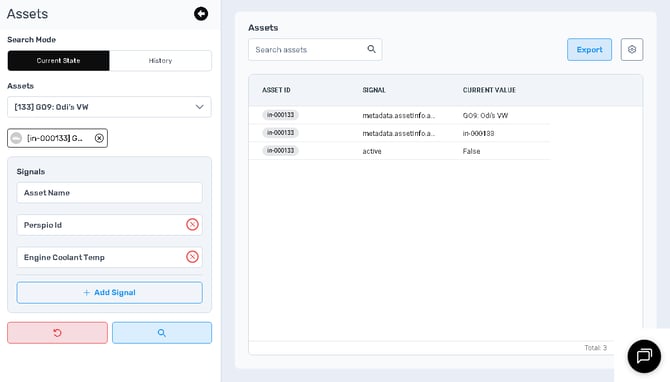
#### 1) Search Mode
A toggle at the top allows you to select:
- **Current State**
- **History**
****
---
#### 2) Assets selector
The **Assets** section lets you choose which assets you want to query.
**Controls**
- **Asset dropdown**: select an asset (example shown: “\[133\] GO9: Odi’s VW”).
- **Selected asset chips**: appear beneath the dropdown; each chip includes an **X** to remove the asset from the query.
**Usability**
- Keep the selection tight when troubleshooting (1–3 assets) so results are easier to interpret.
- Add more assets when comparing behaviour across multiple assets.
> **Note:** In the expanded selector, you can toggle between **Assets** and **Groups** and use the search field to quickly locate the right target.
---
#### 3) Signals list
The **Signals** (Asset Details and Telemetry) section defines what fields you want to retrieve for the selected assets.
**Controls**
- Each selected signal appears as a row (examples shown: **Asset Name**, **Perspio Id**, **Active**, **Engine Coolant Temp**).
- Each signal row includes an **X** control to remove that signal.
- **+ Add Signal** button to include additional signals in the query.
**Usability**
- Start with identity signals (Asset Name, IDs) so you can always confirm the record context.
- Add only the telemetry/config signals needed for the investigation (this keeps tables and charts readable).
---
#### 4) Query controls (bottom)
At the bottom of the panel you typically have two action buttons:
- **Reset** button (red, undo icon): clears the current configuration and returns the panel to a baseline state.
- **Search / Run** button (blue, magnifying glass icon): executes the query using the current selections.
---
### Main panel: results and export
The main panel displays results for your selected assets and signals.
#### 1) Search assets (results filter)
At the top of the results area, there is a **Search assets** field.
Use it to filter the displayed results quickly when you have multiple assets or many signals.
#### 2) Results table (Current State)
In **Current State**, results are shown as a table with columns such as:
- **Asset ID**
- **Signal**
- **Current Value**
This view is best for quick validation of the latest value Perspio has recorded.
#### 3) Export controls
On the top-right of the results area:
- **Export** button: opens export format options.
- **Settings (gear)** button: typically used for view/table preferences (tenant-dependent).
---
#### Using Current State mode
### What Current State is best for
- Confirming whether a signal is currently present and populated
- Checking “last known” values quickly (without time-series noise)
- Validating identity fields (asset name/IDs)
- Verifying if telemetry appears stale (if values do not change when you expect them to)
### How to run a Current State query
1. Set **Search Mode** to **Current State**.
2. Select one or more assets.
3. Add the signals you want to inspect.
4. Select the **Search / Run** button.
5. Review the results table and export if needed.
---
#### Using History mode
### What History is best for
- Understanding how a signal changed over time
- Identifying patterns (oscillation, spikes, dropouts)
- Proving “what happened when” during investigations
- Validating whether a workflow condition would have triggered based on historical behaviour
### History mode controls (left panel)
When you switch to **History**, additional controls become available:
#### 1) View: Grid vs Chart
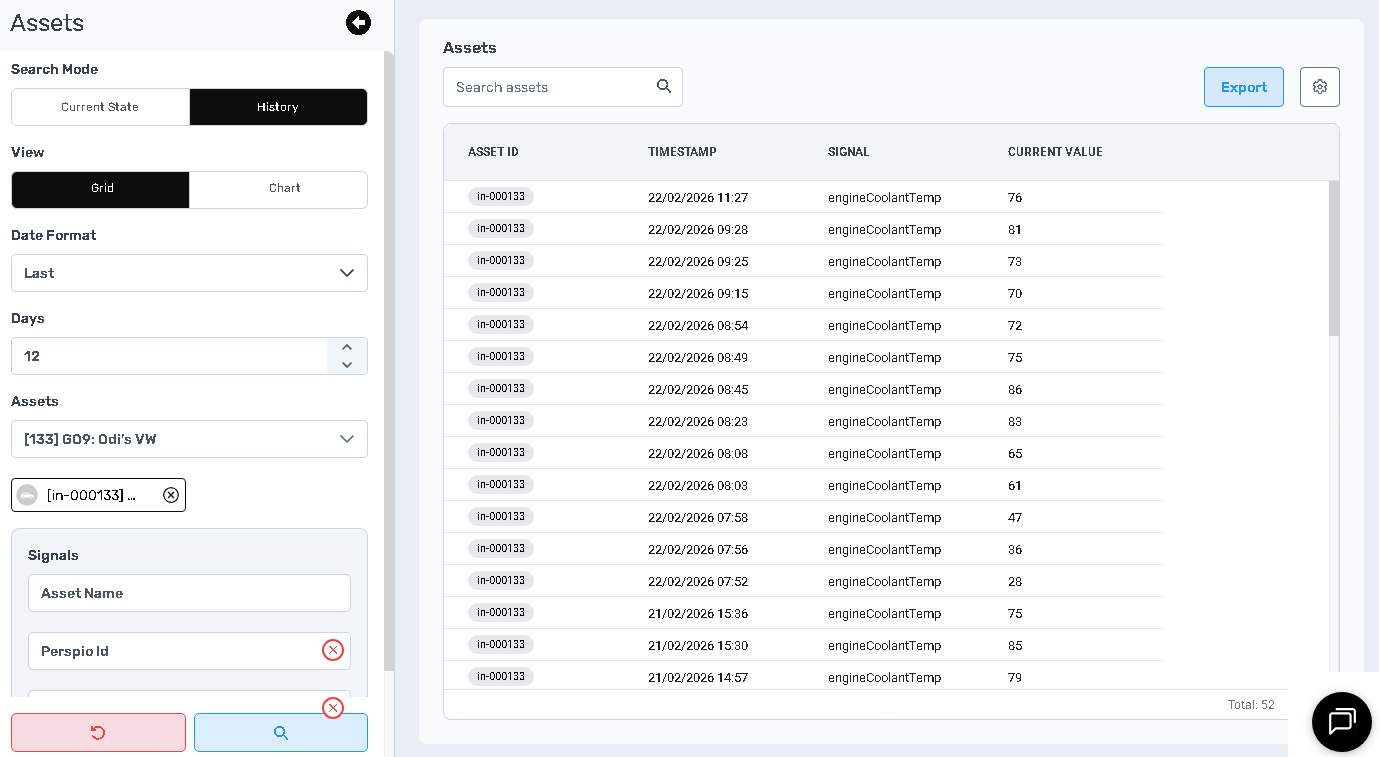
- **Grid**: shows time-stamped records in a table format.
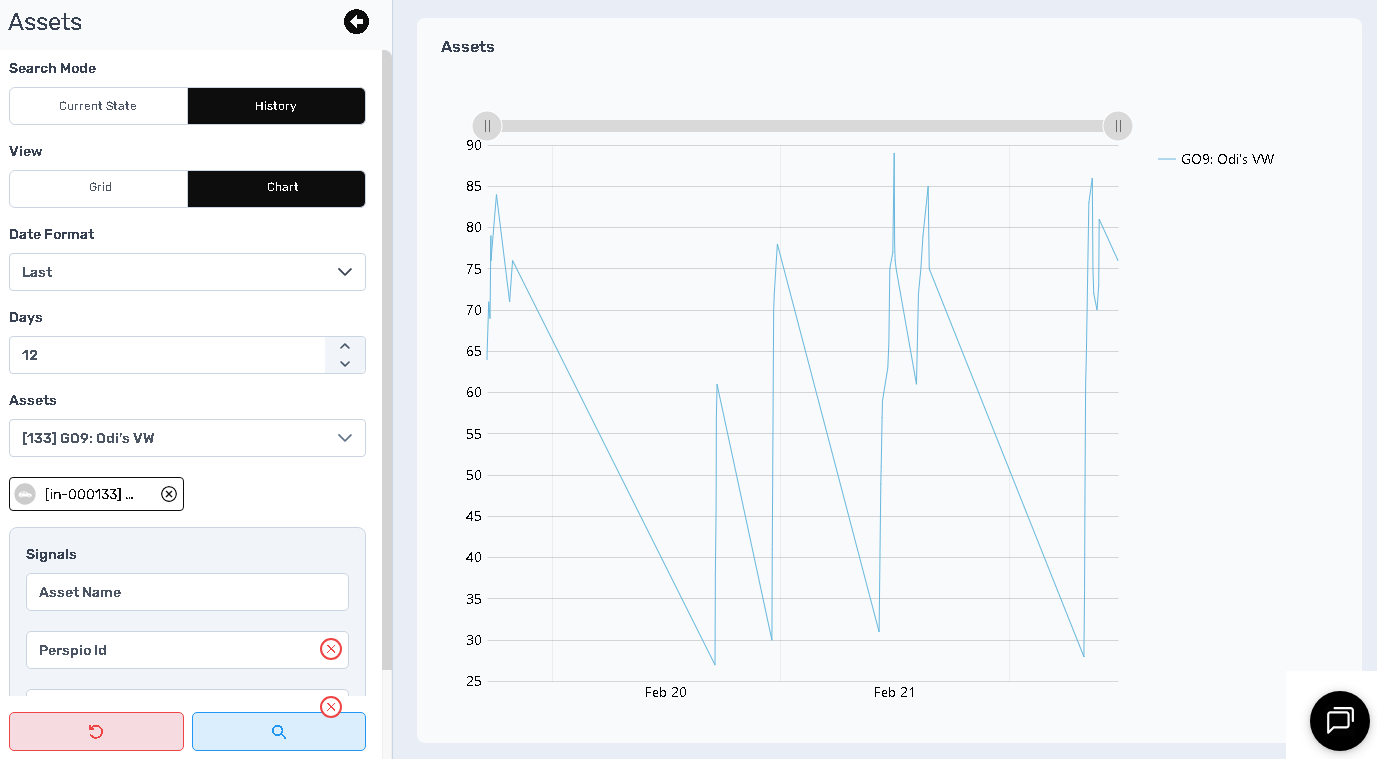
- **Chart**: shows a time-series visual trend line.
#### 2) Date Format
A dropdown that controls how time is represented (example shown: **Last**).
#### 3) Days
A numeric selector (spinner) used to define how many days of history to retrieve (example shown: **12**).
---
### History: Grid view
**Grid view** is a table that includes a **Timestamp** column, enabling precise audit-style reviews.
Common columns include:
- **Asset ID**
- **Timestamp**
- **Signal**
- **Current Value** (value at that timestamp)
**Usability**
- Best for investigations where you need exact times (incident timelines, compliance checks).
- Useful for copying/exporting rows for evidence or analysis.
---
### History: Chart view
**Chart view** visualises the selected signal over time. It is ideal for spotting:
- trends
- step changes
- outliers/spikes
- recurring cycles
Common controls visible in the chart view:
- A **legend** identifying the asset series
- A **time-range slider** at the top of the chart to narrow the visible window
> If you are charting multiple assets or signals, keep selections minimal to maintain readability.
---
#### Exporting results
Export is available from the top-right of the results area and supports:
- **CSV**
- **Excel**
**When to export**
- Sharing results with stakeholders
- Attaching evidence to support tickets or investigations
- Analysing data externally (pivoting, charting, correlation checks)
**Tip:** Use **History → Grid** before exporting when you need time-stamped evidence.
---
#### Best practices
- Start with **Current State** to confirm the signal exists and is populated.
- Move to **History** to investigate behaviour and timing.
- Use **Groups** selection when you need a scalable way to analyse multiple related assets.
- Keep signals focused: identity + the minimum telemetry needed to answer the question.
- Export only once the results are filtered and correct to avoid rework.
---
#### Troubleshooting
### No results or missing values
- Confirm the correct asset is selected.
- Confirm the signal is available for that asset type/device integration.
- In History, increase **Days** to ensure your time window includes the event.
### Values look stale in Current State
- Check whether the device is actively reporting.
- Use History to confirm when the last changes occurred.
### Chart looks misleading
- Switch to **Grid** to verify exact timestamps and values.
- Narrow the range using the time slider for better resolution.
- [Introduction](https://help.perspio.io/help/introduction?hsLang=en#main-content)
- [How to's](https://help.perspio.io/help/introduction?hsLang=en#how-tos)
- [Assets](https://help.perspio.io/help/assets?hsLang=en#main-content)
- [Asset Inspector](https://help.perspio.io/help/assets?hsLang=en#asset-inspector)
- [Utilisation Module](https://help.perspio.io/help/assets?hsLang=en#utilisation-module)
- [Configuration](https://help.perspio.io/help/assets?hsLang=en#configuration)
- [Events](https://help.perspio.io/help/assets?hsLang=en#events)
- [Servicing](https://help.perspio.io/help/assets?hsLang=en#servicing)
- [Asset Configuration](https://help.perspio.io/help/assets?hsLang=en#asset-configuration)
- [Device Configuration](https://help.perspio.io/help/assets?hsLang=en#device-configuration)
- [Explorer](https://help.perspio.io/help/explorer?hsLang=en)
- [Dashboards](https://help.perspio.io/help/dashboards?hsLang=en#main-content)
- [Configuration](https://help.perspio.io/help/dashboards?hsLang=en#configuration)
- [Reports](https://help.perspio.io/help/reports?hsLang=en#main-content)
- [Available Reports](https://help.perspio.io/help/reports?hsLang=en#available-reports)
- [Groups](https://help.perspio.io/help/groups?hsLang=en#main-content)
- [Security Groups](https://help.perspio.io/help/groups?hsLang=en#security-groups)
- [Asset Groups](https://help.perspio.io/help/groups?hsLang=en#asset-groups)
- [Geofences](https://help.perspio.io/help/geofences?hsLang=en)
- [Workflows](https://help.perspio.io/help/workflows?hsLang=en)
- [Administration](https://help.perspio.io/help/administration?hsLang=en#main-content)
- [Settings Module](https://help.perspio.io/help/administration?hsLang=en#settings-module)
- [Admin Panel](https://help.perspio.io/help/administration?hsLang=en#admin-panel)
- [Devices](https://help.perspio.io/help/devices?hsLang=en#main-content)
- [Troubleshooting](https://help.perspio.io/help/devices?hsLang=en#troubleshooting)
- [Installation Guides](https://help.perspio.io/help/devices?hsLang=en#installation-guides)
[](https://perspio.io)
2/50 Yeo St, Neutral Bay NSW 2089
[mailto:servicedesk@perspio.io](mailto:servicedesk@perspio.io)
Copyright © 2026 Inauro