---
title: Asset Schema Tab
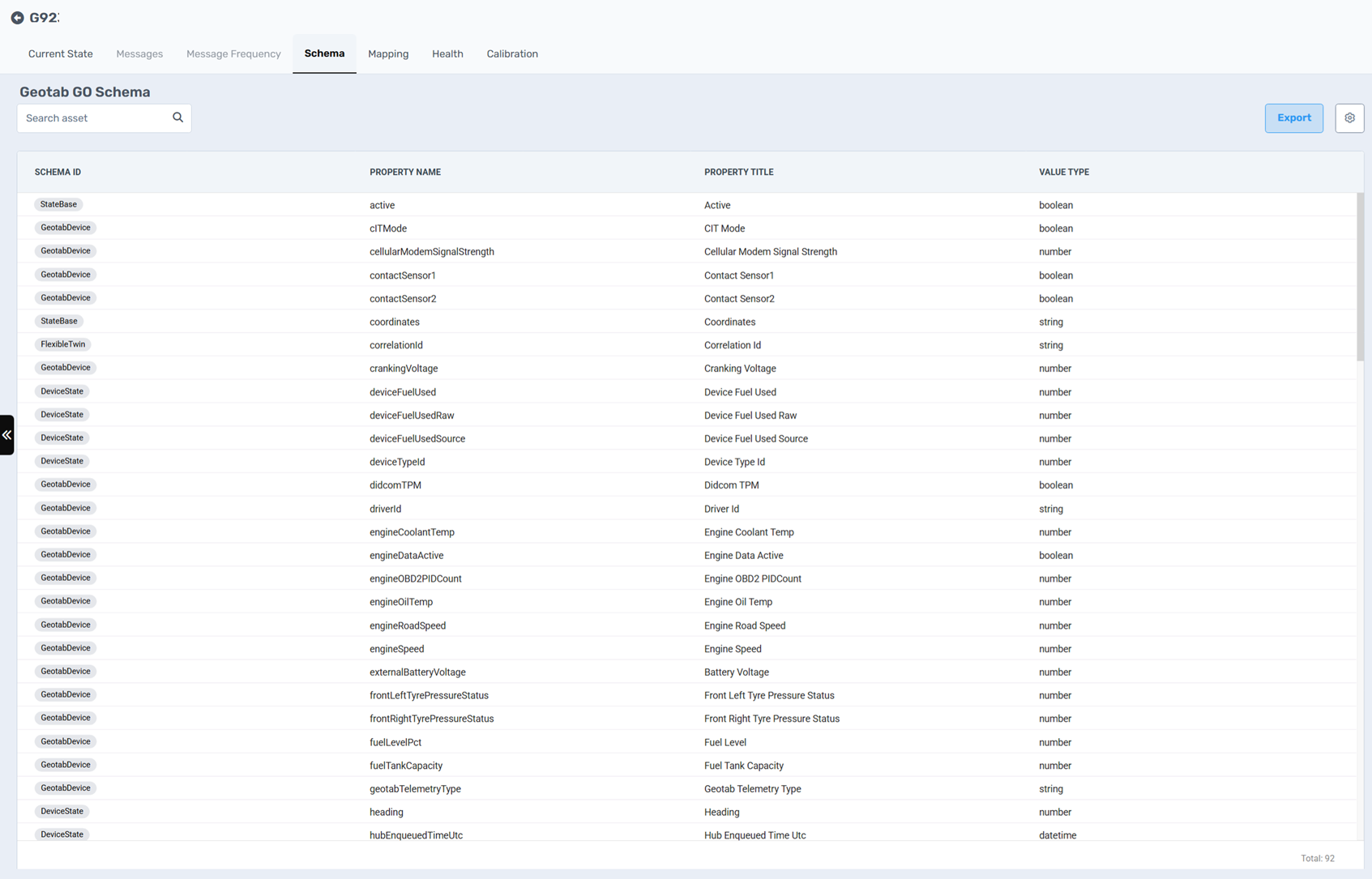
description: The Schema tab under the Device view provides a detailed mapping of all telemetry and data fields associated with a specific device. It displays the underlying data model that defines how telemetry values are structured, their types, and their sources.
---
[Skip to content](https://help.perspio.io/help/asset-schema-tab#main-content)
English
Show submenu for translations
Open main navigation
Close main navigation
- English
Show submenu for translations
- [Contact us](mailto:servicedesk@perspio.io)
[Contact us](mailto:servicedesk@perspio.io)
How can we help you?
- There are no suggestions because the search field is empty.
1. [Perspio Help Centre](https://help.perspio.io/help?hsLang=en)
2. [Assets](https://help.perspio.io/help/assets?hsLang=en)
3. [Device Configuration](https://help.perspio.io/help/assets?hsLang=en#device-configuration)
# Asset Schema Tab
## The Schema tab under the Device view provides a detailed mapping of all telemetry and data fields associated with a specific device. It displays the underlying data model that defines how telemetry values are structured, their types, and their sources.
### Purpose
This section helps administrators, support teams, and integrators understand the format and scope of the data being collected from the device. It is particularly useful when:
- Investigating telemetry issues.
- Aligning schema mapping with external systems.
- Reviewing or preparing data for use in workflows and reports.
---
### Accessing the Schema Tab
To access this view:
1. Navigate to **Asset Configuration** from the main menu.
2. Select the relevant asset.
3. Click the **Devices** tab.
4. Choose the installed device you want to inspect.
5. Open the **Schema** tab from the sub-navigation menu.
---
### Interface Overview
The Schema tab displays a structured table with the following columns:
| Column | Description |
| --- | --- |
| **Schema ID** | Identifies the data schema that the property belongs to. Examples include `GeotabDevice`, `DeviceState`, or `StateBase`. |
| **Property Name** | The internal name used to identify the telemetry property (e.g., `engineSpeed`, `fuelLevelPct`). |
| **Property Title** | A user-friendly title describing the field (e.g., "Engine Speed", "Fuel Level"). |
| **Value Type** | Indicates the format of the data. Common types include `number`, `string`, and `boolean`. |
The **Search Asset** field at the top allows for filtering and quick lookup of specific properties.
---
### Use Cases
### Troubleshooting and Diagnostics
Locate specific properties (such as ignition, fuel level, or GPS coordinates) to confirm if they are correctly ingested or mapped.
### Integration Mapping
Review telemetry fields before integrating with ERP or compliance systems. Understanding the data type and source schema ensures clean mapping and minimal errors.
### Custom Reporting
Identify available fields for custom dashboards and reports. Knowing which schema the data belongs to helps when building logic in workflows or calculations.
### Schema Validation
Use this tab to confirm that all expected telemetry fields are present after installing a new device or switching providers.
---
### Exporting Schema
Click the **Export** button in the top-right corner to download the full schema for the selected device. This exports a structured `.CSV` file that can be used for offline review, sharing, or documentation.
---
### Schema ID Reference
Some examples of common schema IDs you may encounter:
| Schema ID | Description |
| --- | --- |
| `GeotabDevice` | Telemetry fields directly from Geotab devices |
| `DeviceState` | Internal state fields derived by the device |
| `StateBase` | Generic or platform-derived values such as GPS coordinates |
| `FlexibleTwin` | Values injected from third-party systems or back-end processing |
| `BleTemperature` | Temperature from the BLE sensor connected to the device. |
| BleHumidity | Humidity from the BLE sensor connected to the device. |
---
#### Notes
- This tab does **not** show the current value of each field. To view real-time or most recent values, refer to the **Current State** tab.
- Properties listed as `N/A` in other sections still appear in the Schema view to indicate that the system expects to receive those fields.
- [Introduction](https://help.perspio.io/help/introduction?hsLang=en#main-content)
- [How to's](https://help.perspio.io/help/introduction?hsLang=en#how-tos)
- [Assets](https://help.perspio.io/help/assets?hsLang=en#main-content)
- [Asset Inspector](https://help.perspio.io/help/assets?hsLang=en#asset-inspector)
- [Utilisation Module](https://help.perspio.io/help/assets?hsLang=en#utilisation-module)
- [Configuration](https://help.perspio.io/help/assets?hsLang=en#configuration)
- [Events](https://help.perspio.io/help/assets?hsLang=en#events)
- [Servicing](https://help.perspio.io/help/assets?hsLang=en#servicing)
- [Asset Configuration](https://help.perspio.io/help/assets?hsLang=en#asset-configuration)
- [Device Configuration](https://help.perspio.io/help/assets?hsLang=en#device-configuration)
- [Explorer](https://help.perspio.io/help/explorer?hsLang=en)
- [Dashboards](https://help.perspio.io/help/dashboards?hsLang=en#main-content)
- [Configuration](https://help.perspio.io/help/dashboards?hsLang=en#configuration)
- [Reports](https://help.perspio.io/help/reports?hsLang=en#main-content)
- [Available Reports](https://help.perspio.io/help/reports?hsLang=en#available-reports)
- [Groups](https://help.perspio.io/help/groups?hsLang=en#main-content)
- [Security Groups](https://help.perspio.io/help/groups?hsLang=en#security-groups)
- [Asset Groups](https://help.perspio.io/help/groups?hsLang=en#asset-groups)
- [Geofences](https://help.perspio.io/help/geofences?hsLang=en)
- [Workflows](https://help.perspio.io/help/workflows?hsLang=en)
- [Administration](https://help.perspio.io/help/administration?hsLang=en#main-content)
- [Settings Module](https://help.perspio.io/help/administration?hsLang=en#settings-module)
- [Admin Panel](https://help.perspio.io/help/administration?hsLang=en#admin-panel)
- [Devices](https://help.perspio.io/help/devices?hsLang=en#main-content)
- [Troubleshooting](https://help.perspio.io/help/devices?hsLang=en#troubleshooting)
- [Installation Guides](https://help.perspio.io/help/devices?hsLang=en#installation-guides)
[](https://perspio.io)
2/50 Yeo St, Neutral Bay NSW 2089
[mailto:servicedesk@perspio.io](mailto:servicedesk@perspio.io)
Copyright © 2026 Inauro