---
title: Asset Map Marker Colours
description: The map markers that are displayed represent each and every location enabled asset in your Perspio tenant.
---
[Skip to content](https://help.perspio.io/help/asset-map-marker-colours#main-content)
English
Show submenu for translations

Open main navigation
Close main navigation
- English
Show submenu for translations
- [Contact us](mailto:servicedesk@perspio.io)
[Contact us](mailto:servicedesk@perspio.io)
How can we help you?
- There are no suggestions because the search field is empty.
1. [Perspio Help Centre](https://help.perspio.io/help?hsLang=en)
2. [Administration](https://help.perspio.io/help/administration?hsLang=en)
# Asset Map Marker Colours
## The map markers are a useful way to identify the current state of an asset. They can also be customised to match your business needs.
Assets in Perspio are represented by colours on the map. There are currently four states, see the representation below:
- **Red -** No Communication - Means a device haven't communicated or sent a heartbeat in over 48h.
- **Yellow -** Partial Communication - Assets that have more than one device connected to it and only one has communicated or sent a heartbeat in the last 48h.
- **Blue -** Active (Ignition On) - Asset currently working, has ignition turned on.
- **Navy -** Active (Ignition Off) - Asset communicating regularly with Perspio. Ignition is off but sending heartbeats.
- **Black -** No Devices - Non-telemetry assets, has no devices linked to it.
To customise the colours, follow the guide below.
### 1. Click on Admin

### 2. Click on Tenant
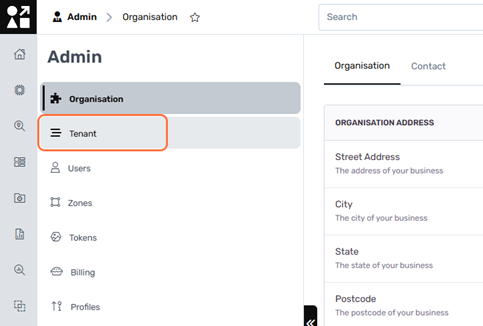
### 3. Click on Assets

### 4. Click on Edit

### 5. Choose a colour or type the RGB information

### 6. Click on Save to complete the changes

- [Introduction](https://help.perspio.io/help/introduction?hsLang=en#main-content)
- [How to's](https://help.perspio.io/help/introduction?hsLang=en#how-tos)
- [Assets](https://help.perspio.io/help/assets?hsLang=en#main-content)
- [Asset Inspector](https://help.perspio.io/help/assets?hsLang=en#asset-inspector)
- [Utilisation Module](https://help.perspio.io/help/assets?hsLang=en#utilisation-module)
- [Configuration](https://help.perspio.io/help/assets?hsLang=en#configuration)
- [Events](https://help.perspio.io/help/assets?hsLang=en#events)
- [Servicing](https://help.perspio.io/help/assets?hsLang=en#servicing)
- [Asset Configuration](https://help.perspio.io/help/assets?hsLang=en#asset-configuration)
- [Device Configuration](https://help.perspio.io/help/assets?hsLang=en#device-configuration)
- [Explorer](https://help.perspio.io/help/explorer?hsLang=en)
- [Dashboards](https://help.perspio.io/help/dashboards?hsLang=en#main-content)
- [Configuration](https://help.perspio.io/help/dashboards?hsLang=en#configuration)
- [Reports](https://help.perspio.io/help/reports?hsLang=en#main-content)
- [Available Reports](https://help.perspio.io/help/reports?hsLang=en#available-reports)
- [Groups](https://help.perspio.io/help/groups?hsLang=en#main-content)
- [Security Groups](https://help.perspio.io/help/groups?hsLang=en#security-groups)
- [Asset Groups](https://help.perspio.io/help/groups?hsLang=en#asset-groups)
- [Geofences](https://help.perspio.io/help/geofences?hsLang=en)
- [Workflows](https://help.perspio.io/help/workflows?hsLang=en)
- [Administration](https://help.perspio.io/help/administration?hsLang=en#main-content)
- [Settings Module](https://help.perspio.io/help/administration?hsLang=en#settings-module)
- [Admin Panel](https://help.perspio.io/help/administration?hsLang=en#admin-panel)
- [Devices](https://help.perspio.io/help/devices?hsLang=en#main-content)
- [Troubleshooting](https://help.perspio.io/help/devices?hsLang=en#troubleshooting)
- [Installation Guides](https://help.perspio.io/help/devices?hsLang=en#installation-guides)
[](https://perspio.io)
2/50 Yeo St, Neutral Bay NSW 2089
[mailto:servicedesk@perspio.io](mailto:servicedesk@perspio.io)
Copyright © 2026 Inauro