
Overview
The API menu in the Admin Panel is where you create and manage API Applications (“Apps”) used by third-party tools and integrations (for example, BI/reporting tools, middleware, or custom scripts) to securely access your Perspio tenant.
Each App provides the credentials and keys your integration needs (for example, Client ID, Client Secret, and Subscription Key) and allows you to control the scope of access granted to that integration.
Important (Credential lifecycle): Each Client Secret is valid for 2 years. Before the expiry date, you must renew it by resetting the secret and then update the secret in any consuming integration to avoid authentication failures.
Who should use this
-
Tenant Admins managing integrations
-
Technical staff configuring external systems (BI, data pipelines, custom apps)
-
Support teams rotating credentials and enforcing least-privilege access
Navigation
-
Open Admin Panel
-
Select API from the left-hand menu
-
You will land on Apps
Screen layout and controls
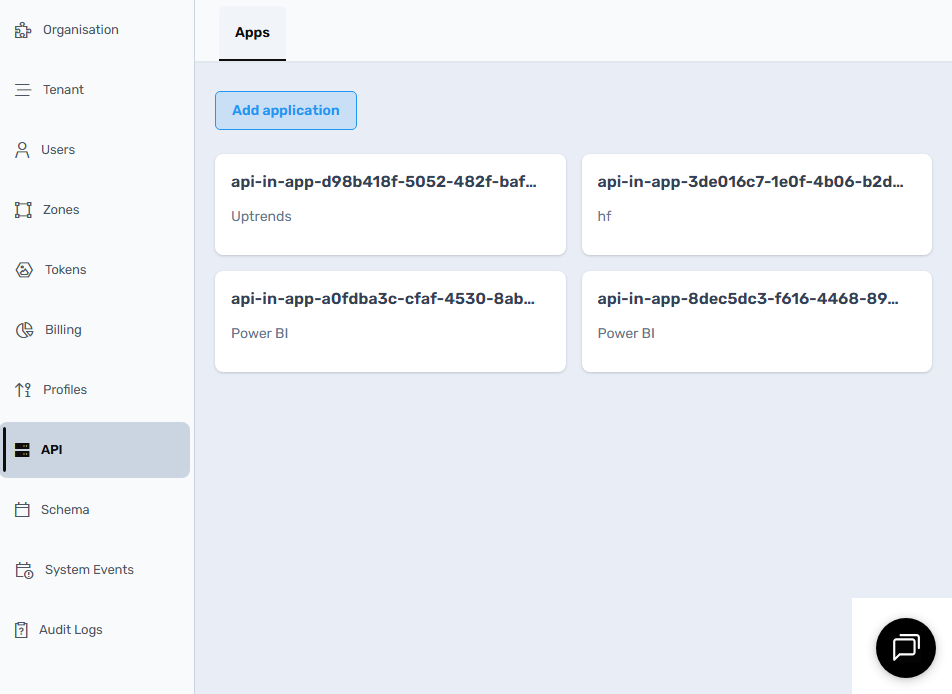
Apps list (landing page)
-
Add application (button): Creates a new API App for an integration.
-
App cards: Each card represents one App and shows:
-
The App name/identifier (system-generated)
-
A short Description (e.g., the integration name)
-
How it’s typically used
-
Create one App per integration (e.g., one for Power BI, one for a middleware service). This makes access control and secret rotation safer and easier.
Procedure
Step 1 — Review existing API Apps
From Admin → API → Apps, review the cards to identify:
-
Which integrations already exist
-
Which App you should open for updates (e.g., credentials, access restrictions)
Step 2 — Open an App and review Details
Click an App card to open it. You’ll see three tabs:
-
Details
-
Access
-
Restrictions
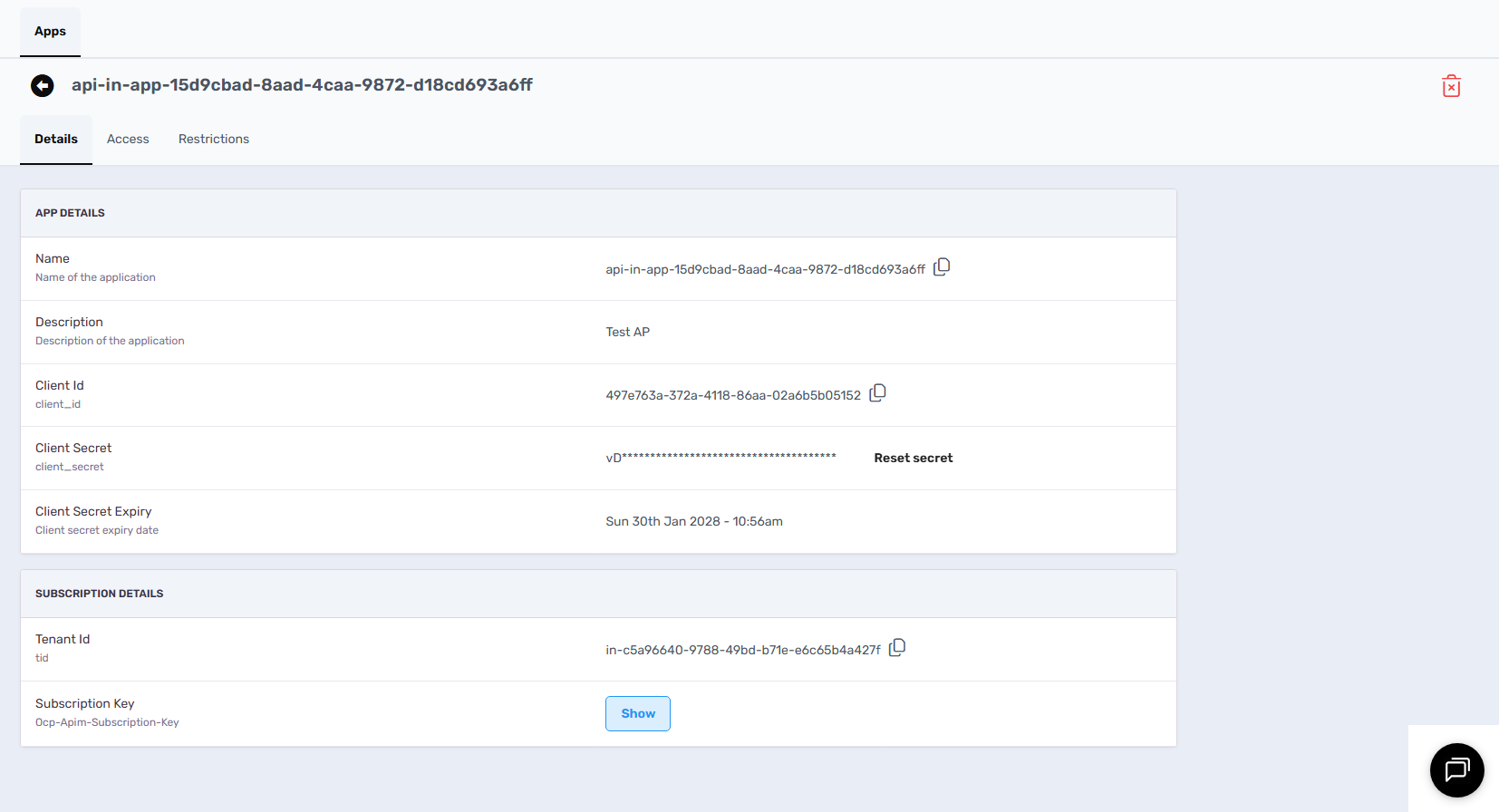
On Details, you’ll find:
App Details
-
Name: The application identifier (used internally to distinguish Apps).
-
Description: Human-readable label (use this to describe the integration purpose).
-
Client Id: The identifier used by your integration during authentication.
-
Client Secret: A sensitive credential used alongside the Client ID.
-
Displayed masked for security.
-
Reset secret generates a new secret (see “Renewal” below).
-
-
Client Secret Expiry: The expiry date/time for the current secret.
Subscription Details
-
Tenant Id: Your Perspio tenant identifier.
-
Subscription Key: The API subscription key (commonly required as a header in API requests).
-
Show reveals the key (use only when needed).
-
Keep this key protected like a password.
-
Screen controls
-
Back arrow (near the App name): Returns to the Apps list.
-
Copy icons (next to values like Name/Client ID/Tenant ID): Copies the value to clipboard.
-
Delete (bin) icon: Removes the App (use with caution—this can break integrations immediately).
Step 3 — Capture the values needed by the integration (securely)
Depending on the integration, you typically provide:
-
Client ID
-
Client Secret
-
Tenant ID
-
Subscription Key
Best practice
-
Store these values in a secure secrets manager (or an equivalent controlled-access vault).
-
Avoid sending secrets via email or chat.
-
Use the copy and show controls only when necessary.
Step 4 — Configure access restrictions (least privilege)
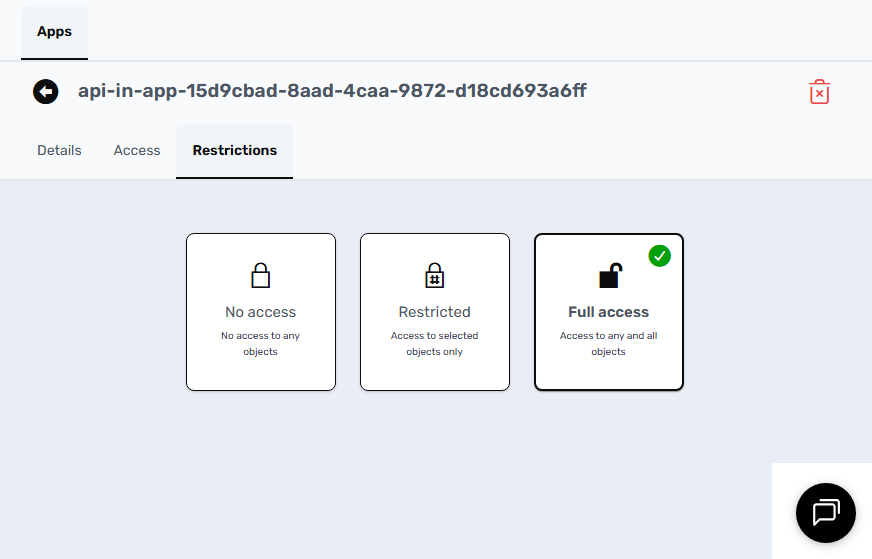
Open the Restrictions tab to control how much data the App can access:
-
No access: The App cannot access any objects (effectively disables the integration).
-
Restricted: The App can access only selected objects through Security Groups (recommended for controlled integrations).
-
Full access: The App can access any and all objects (use only when genuinely required).
After selecting an option, Perspio saves the configuration and confirms success.
How to use this effectively
-
Start with Restricted wherever possible.
-
Use Full access only for trusted internal services that genuinely require broad visibility.
-
Use No access to quickly disable an integration without deleting it.
Access tab (how it fits in)
The Access tab is used in conjunction with Restrictions:
-
If Restricted is selected, the Access tab is where you manage the specific Security Groups that the App can access.
-
If Full access is selected, granular selection is unnecessary because the App has broad access.
Client Secret renewal (2-year validity)
Each App’s Client Secret is issued with a 2-year validity period, shown under Client Secret Expiry.
When to renew
-
Renew before the expiry date to prevent downtime.
-
Also renew if you suspect the secret has been exposed.
How to renew
-
Open the App
-
Go to Details
-
Select Reset secret
-
Update the new secret in the external integration immediately
-
Confirm the integration reconnects successfully
Operational note
-
Resetting the secret can invalidate the old secret, which may cause the integration to fail until updated.
Troubleshooting
Integration stopped working unexpectedly
Check:
-
Client Secret Expiry (secret may have expired)
-
Restrictions (may be set to No access or overly restrictive)
-
The integration is using the correct Subscription Key and Client ID
“Unauthorised” / “Forbidden” responses from API calls
Check:
-
The request includes the correct Subscription Key
-
Access mode is set appropriately (Restricted vs Full access)
-
If Restricted, confirm the required objects/resources are selected under Access
Need to disable access quickly
-
Set Restrictions → No access (safer than deletion if you might re-enable later)
Governance and best practices
-
Create separate Apps per integration for clean ownership and easier auditing.
-
Use Restricted access by default.
-
Rotate secrets before expiry (and after staff/vendor changes).
-
Treat Client Secret and Subscription Key as passwords (least distribution, secure storage, minimal “show” usage).
Conclusion
This screen helps administrators maintain full control over which external systems are connected to Perspio via APIs, ensuring visibility, security, and operational consistency.
It is important to note that you can only add up to three API connections to your tenant.
Follow the steps here on how to add a new API Connection.